
Tag Archives: Docker

Grafana Logging and Monitoring

Grafana Logging and Monitoring

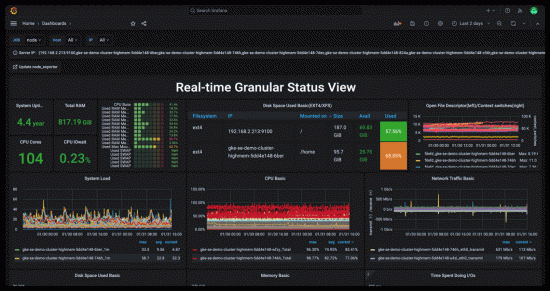
We’ve added a Grafana Monitoring and Logging system to our Home Lab. The system is based on Grafana, Prometheus, Grafana Loki, Promtail, Telegraf, and InFlux DB.

Installation

The following video covers the installation of our Grafana Monitoring and Logging monitoring stack.


Setup Logging and Monitoring in Docker

Configure Loki and Promtail

Grafana Lofi and Promtail work together to scape and store log data. These tools can scrape docker data and accept syslog data as well. The following video explains how to configure Loki and Promtail.


Configure Grafana Loki and Promtail for logs

There are a few details that we needed to do differently than the video:

  • We had to configure a tsdb schema for Loki
  • The links for configuring the Loki Docker driver can be found here and here.
  • Set parameters in the Loki Docker driver via /etc/docker/daemon.json to avoid blocking the Docker.
  • Recreating containers with Portainer does not enable Lofi to access their logs. To make this work, we needed to use docker compose up -d –force-recreate

The contents of /etc/docker/daemon.json are as follows:

{
  "log-driver": "loki",
  "log-opts": {
     "loki-url": "http://localhost:3100/loki/api/v1/push",
      "loki-batch-size": "400",
      "loki-retries": "2",
      "loki-max-backoff": "800ms",
      "loki-timeout": "1s",
      "keep-file": "true",
      "mode": "non-blocking"
    }
}

Syslog

We have configured a combination of Loki and Promtail to accept Syslog events. Promtail does not support Syslog events using the UDP protocol. To solve this problem, we set up rsyslog running under the Ubuntu system, which hosts the Promtail Docker container, to consolidate and forward all Syslog events as a front end to Promtail. Information on configuring rsyslog as a front end to Promtail can be found here.

Monitoring Dashboards

The following video provides some information on configuring dashboards and other monitoring capabilities.
Create and Configure Grafana Dashboards

VS Code Server

VS Code Server

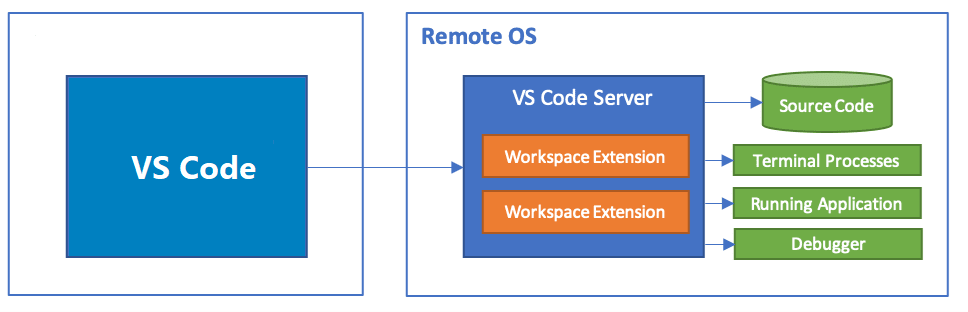
We do a variety of software development and Java coding tasks. To make this easier and more accessible from all our computers, we will try VS Code and VS Code Server.

This tool allows editing using a web browser on any computer. The VS Code web interface is hosted from a server running in a Docker container.

Installation and Set Up

The following video explains how to set up the tool and connect it to a GitHub repository.


VS Code Server Installation and Set Up

VS Code Extensions

The following video suggests several useful VS Code plugin extensions.

Nginx Proxy Manager

Nginx Proxy Manager

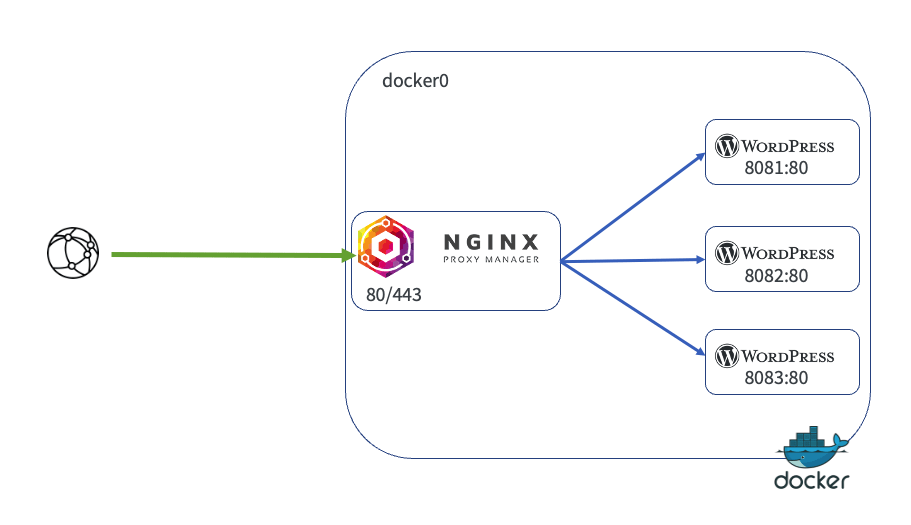
Many services and devices in our home lab have web interfaces. We secure many of them using Nginx Proxy Manager as a reverse proxy.

Traefik Reverse Proxy provides ingress control and SSL certificates for our docker services. While Traefik can be used for services outside Docker, configuring it is complex and requires restarting the Trafik container. As a result, we also run Nginx PM in a container to enable SSL certificates and simple reverse proxy configuration of our web-based services outside of Docker.

Nginx Proxy Manager Installation

Installing is easy. The following video explains the process, including using a DNS-01 challenge to obtain SSL certificates via Let’s Encrypt.

We configured a Docker macVLAN network for the Nginx PM container so that the proxy could determine the source IP addresses that access it. This enables IP filtering and other features.

Pihole with a Cloudflare Tunnel

Pihole in Docker

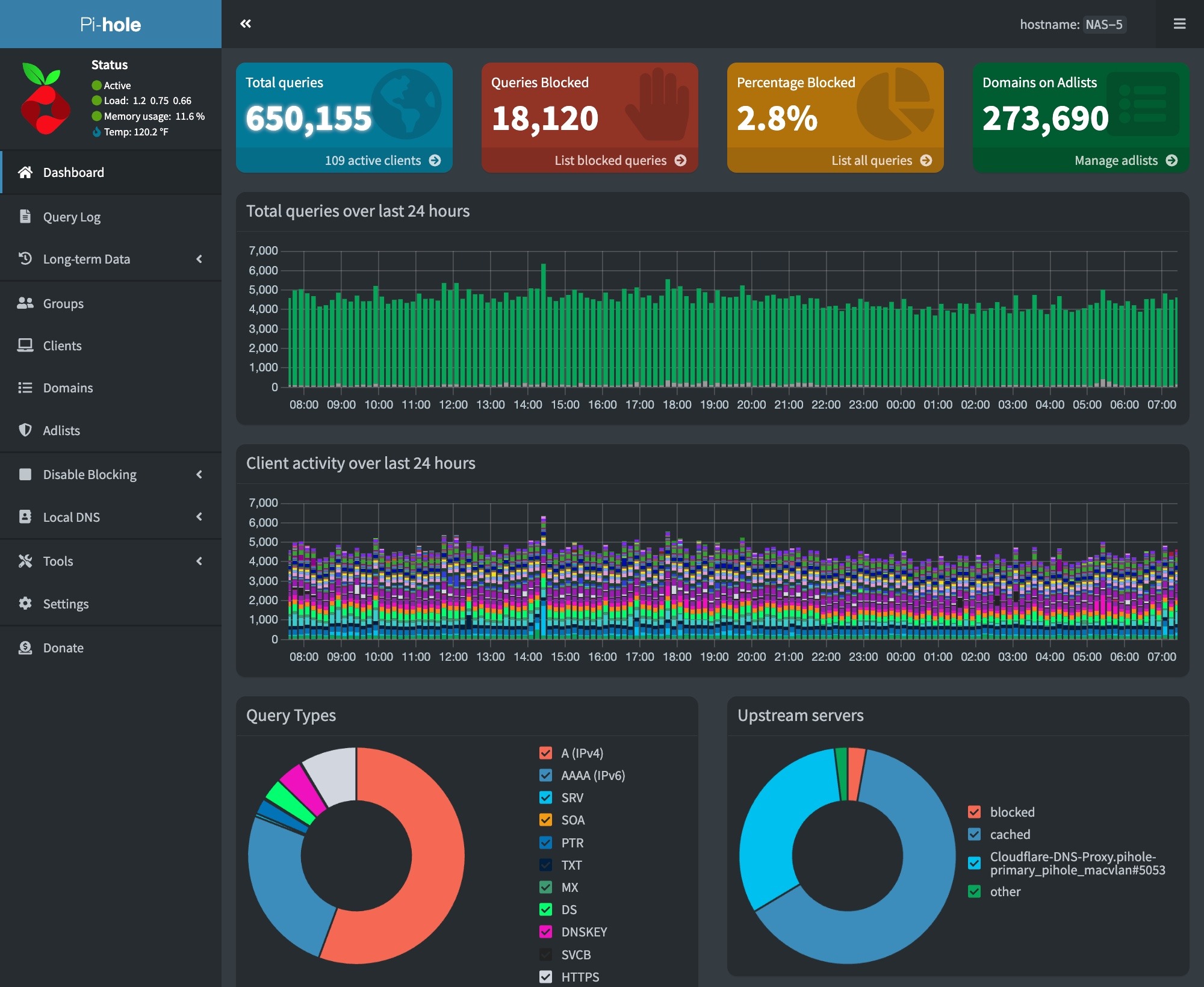
We are running three Pihole installations, which enable load balancing and high availability for our DNS services. We also use a Cloudflare encrypted tunnel to protect information in external DNS queries via the Internet.

Our three instances are deployed on a combination of Docker host VMs in our Proxmox Cluster and a stand-alone Raspberry Pi Docker host.

Deploy Pihole with a Cloudflare Tunnel

Our software service stack for our dockerPiHole installs Pi includes the following applications:

Our combined stack was created using  information in the following video:


Deploy PiHole with Cloudflare Tunnel in Docker

Ubuntu Port 53 Fix

Unubtu VMs include a DNS caching server on port 53, which prevents Pihole from being deployed. To fix this, run the commands at this link on the host Ubuntu VM before installing the Pihole and Cloudflare Tunnel containers.

Scheduled Block List Updates

We must update our block lists by doing a Gravity pull. We do this daily via a cron job. This can be configured on the RPi host using the following commands –

# Edit the user crontab
sudo crontab -u <user-id> -e

# The following to the user crontab
min hr * * * su ubuntu -c /usr/bin/docker exec pihole pihole -g | /usr/bin/mailx -s"RPi Docker - Gravity Pull" your-email@mydomain.com