There are many reasons why you may need to expand Proxmox VM Storage. It is always challenging to grow a VM’s virtual disk in Proxmox. The process requires several steps. Mistakes can result in the loss of data. The video above provides an easy-to-understand guide on how to expand a VM disk.
Before beginning, your should make a backup. It also helps to format your VM disks using LVM thin provisioning.
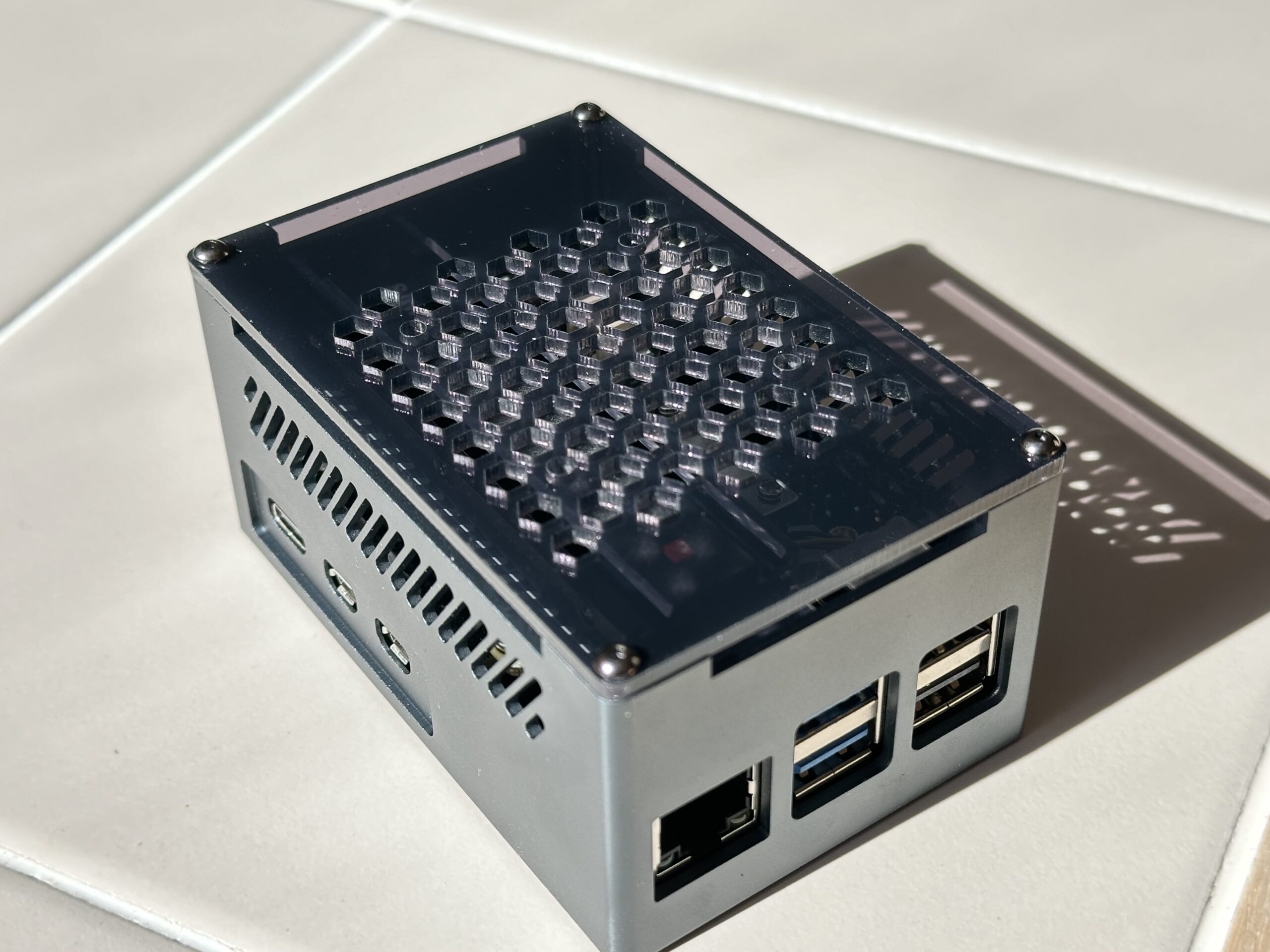
While having enterprise-grade equipment in our Home Lab is nice, I aimed to build something simple. It had to be inexpensive for beginners. So, the solution is a simple Raspberry Pi Home Server.
Project Objectives
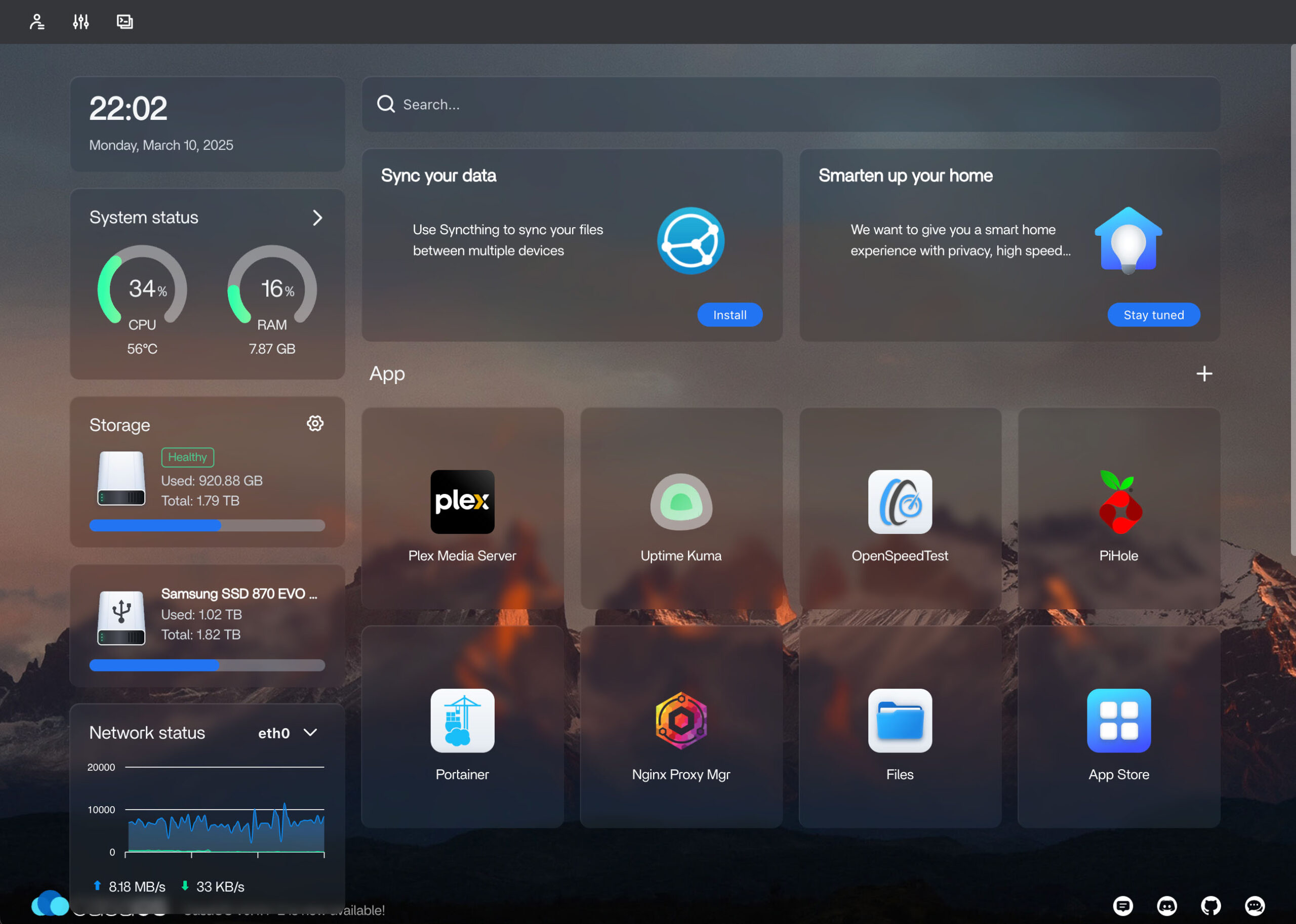
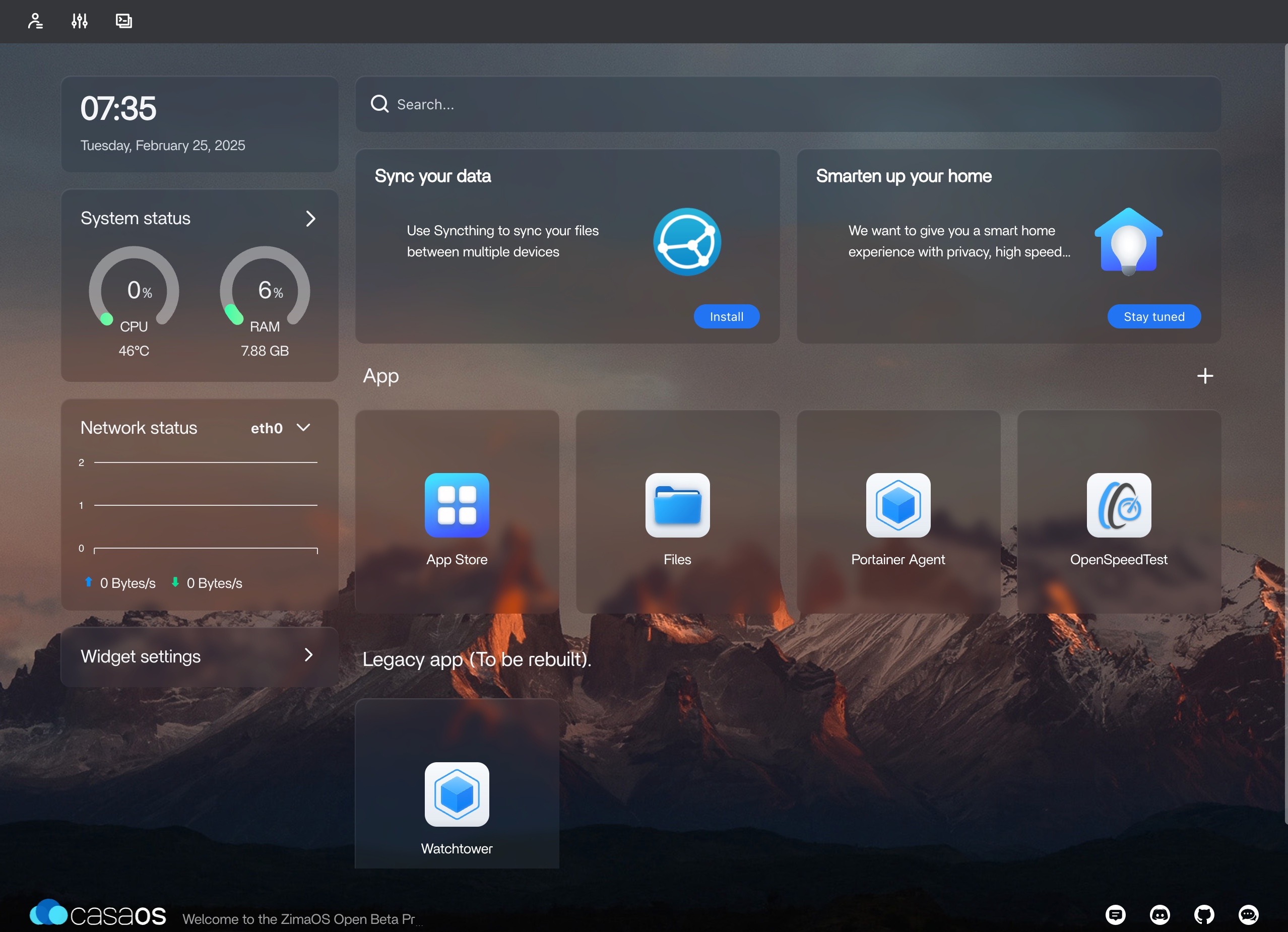
Raspberry Pi Home Server Running CasaOS
Many applications and services can be hosted on a home server. For this project, we choose a basic set of capabilities for our Raspberry Pi Home server project –
Sharing files on a home network via Network Attached Storage (NAS)
Photos, Music, Videos, Documents, …
A DNS Server to create easy-to-remember names to access IP devices and services
192.168.1.xxx vs. your-service.your-domain.net
Creating a personal domain via Cloudflare and obtaining a signed SSL Certificate for your web services
Setting up a Reverse Proxy to tie it all together in a secure fashion
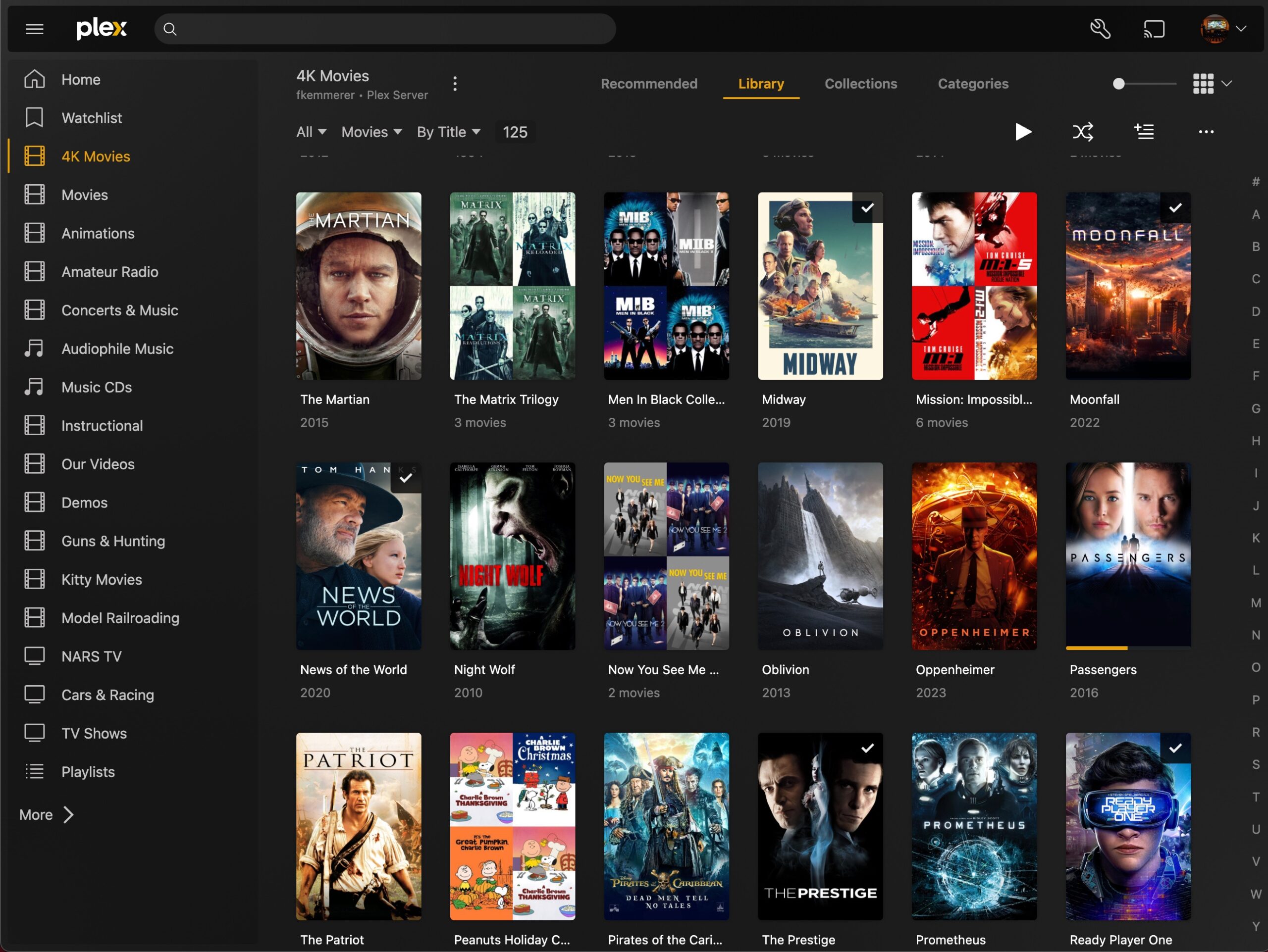
Serving media for viewing across TVs, PCs, and Smart Devices (phones, tablets)
Keep your devices and apps up and working via monitoring.
Also, this project can offer an opportunity to learn about and use modern IT technology, and one can build upon this project to add applications to –
Create a website and share it with the world
Build a ”Smart Home”
Add a Home Lab dashboard
…
We’ll be making use of Docker for much of this project. Sample Docker Compose files are included for many of the applications that follow. Note that files will need some adjustments. In particular, replace <example – password> items with your custom values. Use strong passwords. Keep your passwords and API keys secure.
We recommend a Raspberry Pi 4B or Pi 5 system with 8 GB of RAM for your home server. For storage, we recommend an SSD device for reliability and capacity reasons. Below are links to systems that we’ve built.
PiTech (coming soon) – RPi 5 System with a 2 TB 2.5″ SSD
If you buy new hardware to build your home server, I recommend a system like PiNAS. The PiLab and PiTech systems are good choices. These options are ideal if you already have a Raspberry Pi 4B or Raspberry Pi 5. Make sure you also have a suitable 2.5″ SSD drive available.
The prerequisites below are needed for this project. We suggest that you finish these items in place before you start the rest of the steps outlined in the next sections –
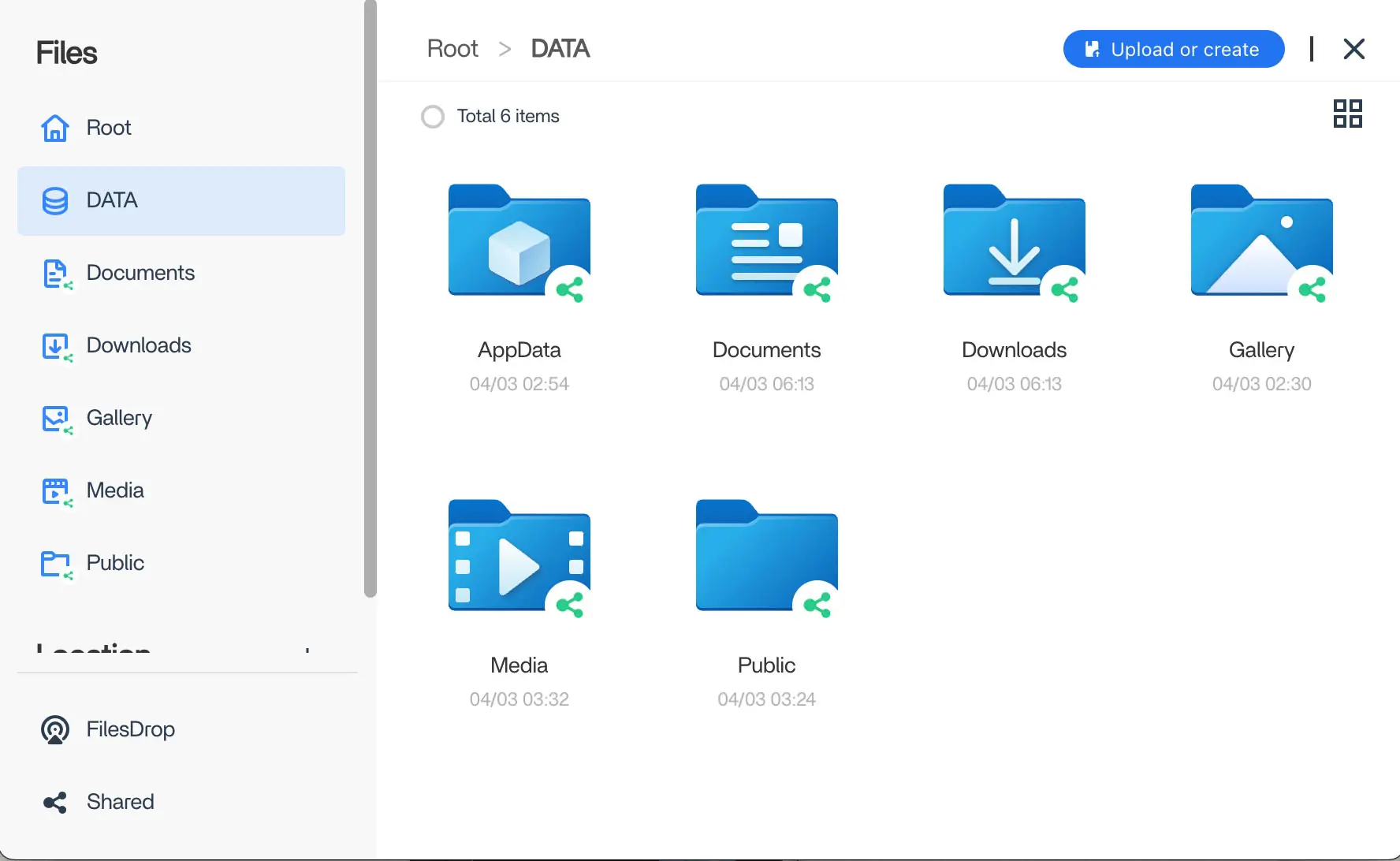
You can use the Files app in CasaOS to share your folders on your network. These shares are not password-protected and can be viewed by anyone who can access your home network.
Password Protecting CasaOS Shared Folders
This can be done by manually configuring Samba file sharing in Linux.
First, set up and share all of your main folders in CasaOS. This is necessary as adding extra shared folders will overwrite the changes we will make here.
Next, we must create a user and set a password for file sharing. The commands below will create a user called shareuser and set a password for the user.
The second command prompts you to enter a password to access protected shared folders. The CasaOS Terminal can filter certain characters in your password. It is best to run these commands via SSH from another computer.
Now, we can turn on password protection for our shared folders by editing /etc/samba/smb.casa.conf using the following command.
$ sudo nano /etc/samba/smb.casa.conf
You can protect each share by modifying the lines shown in bold in the example below for the share.
[Media]
comment = CasaOS share Media
public = No
path = /DATA/Media
browseable = Yes
read only = Yes
guest ok = No
valid users = shareuser
write list = shareuser
create mask = 0777
directory mask = 0777
force user = root
When you are done making the changes, run the following command to apply your changes.
$ sudo service smbd restart
Your shared folders are now password-protected. When accessing them from your Mac or Windows PC, you will be prompted to enter your user name, which is shareuser. You will also need to enter the password that you set.
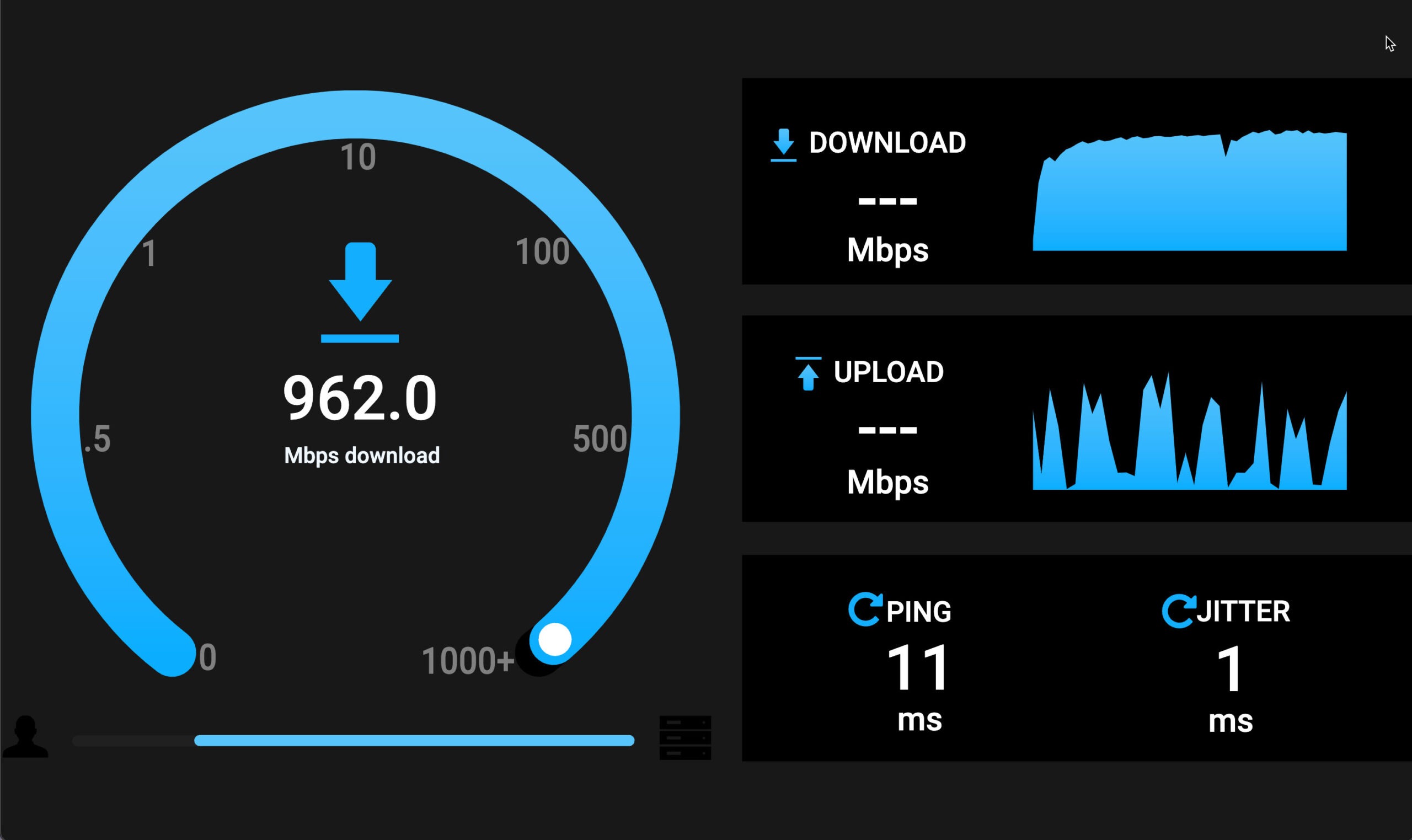
We’ll use the CasaOS App Store to install a simple speed test application called OpenSpeedTest on our home server. We’ll use the Utilities version of this app.
Once our speed test is installed, we can run it using the icon in the CasaOS dashboard or from any web browser on our home network using the following URL –
http://<you server IP>:3004
OpenSpeedTest runs as a container inside Docker on your Linux OS. Docker is beneficial for running applications without consuming much processing and memory resources. More about Docker follows.
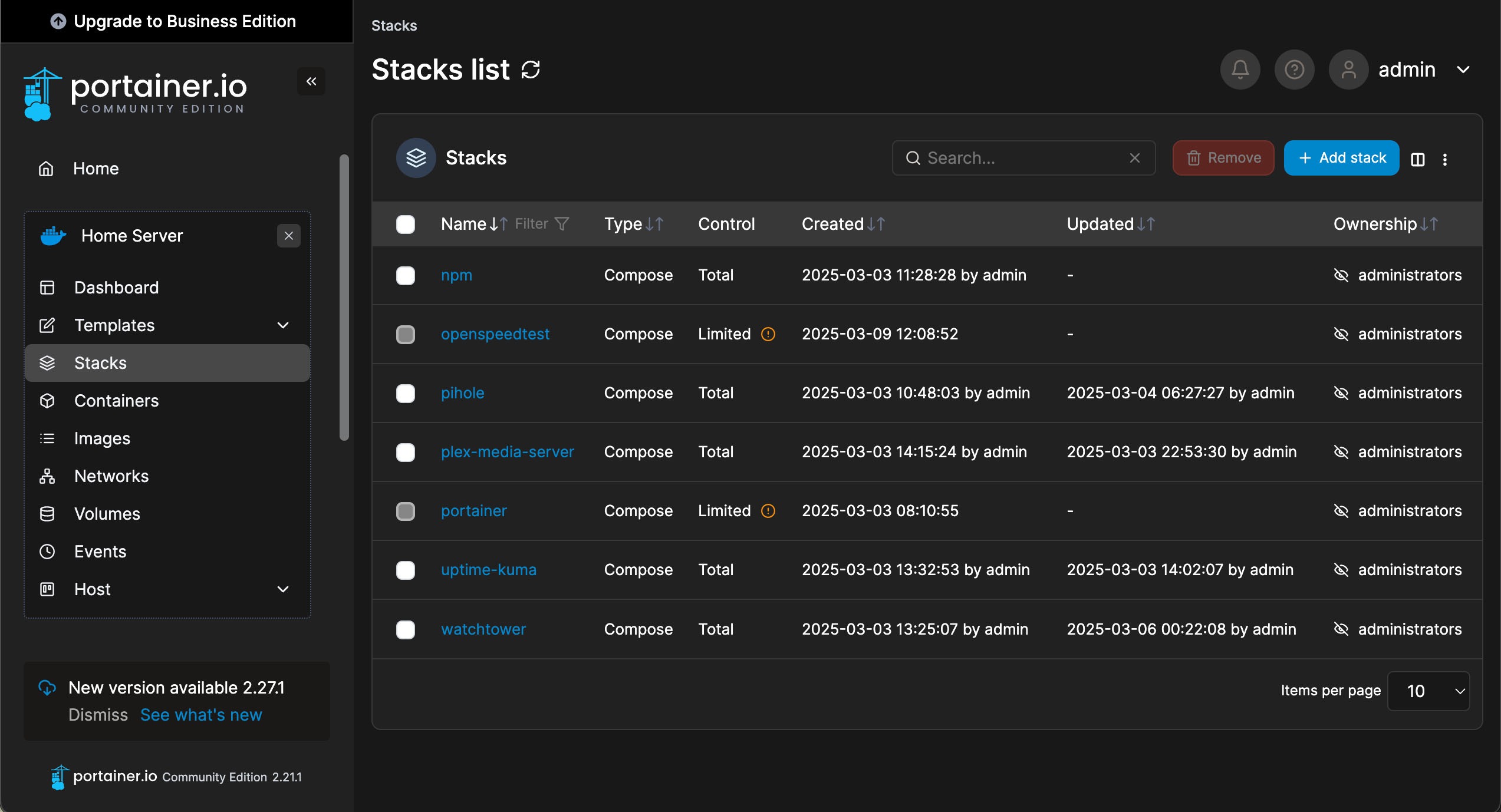
We’ll use Docker to install and run applications on our home server. Docker provides an efficient environment to host applications. We’ll use Docker Compose to set up our applications to run in Docker.
We’ll install an application called Portainer from the CasaOS app store next.
Portainer Running on Our Home Server
Portainer provides a graphical user interface (GUI) that makes using Docker much easier. So, we’ll use Portainer to install and manage all the Apps on our home server.
Watchtower – Automatic Checks for Container Updates
Next, we’ll install a container called Watchtower. Watchtower will periodically check for updated versions of all of our Docker images.
Here is a template Docker Compose file for installing Watchtower using a Stack in Portainer.
Dockerfile
# Watchtower – check for container image updatesservices: watchtower: container_name: Watchtower image: containrrr/watchtower:latest security_opt: - no-new-privileges:true volumes: - /var/run/docker.sock:/var/run/docker.sock# Restart on crashes and reboots restart: unless-stopped# Configure the container environment:# Set Timezone - TZ=America/New_York# Cleanup old images - WATCHTOWER_CLEANUP=true# Monitor only - disable auto updates - WATCHTOWER_MONITOR_ONLY=true# Set schedule to run at 5 am daily - WATCHTOWER_SCHEDULE=0 0 5 * * *
Watchtower Docker Compose Template
If Watchtower finds any updates, it will leave unused images for the associated containers in the Images section of Portainer. Specifically, to update a Container, you re-create it using the latest image. Afterward, you can remove the old unused images for the updated containers, as they will no longer be needed.
You should already have purchased a domain on Cloudflare as part of completing the prerequisites for this project. Afterward, we’ll set up a Dynamic DNS service on our home server. This will keep the IP address for our Internet connection current and hidden in our Cloudflare DNS.
We’ll use a Cloudflare DDNS container to do this. The steps are –
Next, we’ll paste our token into our Docker Compose for our container. We’ll deploy our container as a stack in Portainer. Refer below for a template Docker Compose file.
Finally, we’ll log in to Cloudflare and check that our Internet IP address is correct.
Dockerfile
# Cloudflare DDNS: set IP address for your domain on Cloudflareservices: cloudflare-ddns: image: oznu/cloudflare-ddns:latest restart: unless-stopped container_name: Cloudflare-DDNS-Update security_opt: - no-new-privileges:true environment: - API_KEY=<Your API key from Cloudflare goes here> - ZONE=<Your domain name goes here> - PROXIED=true# Check for IP changes every 5 minutes - CRON=*/5 * * * *
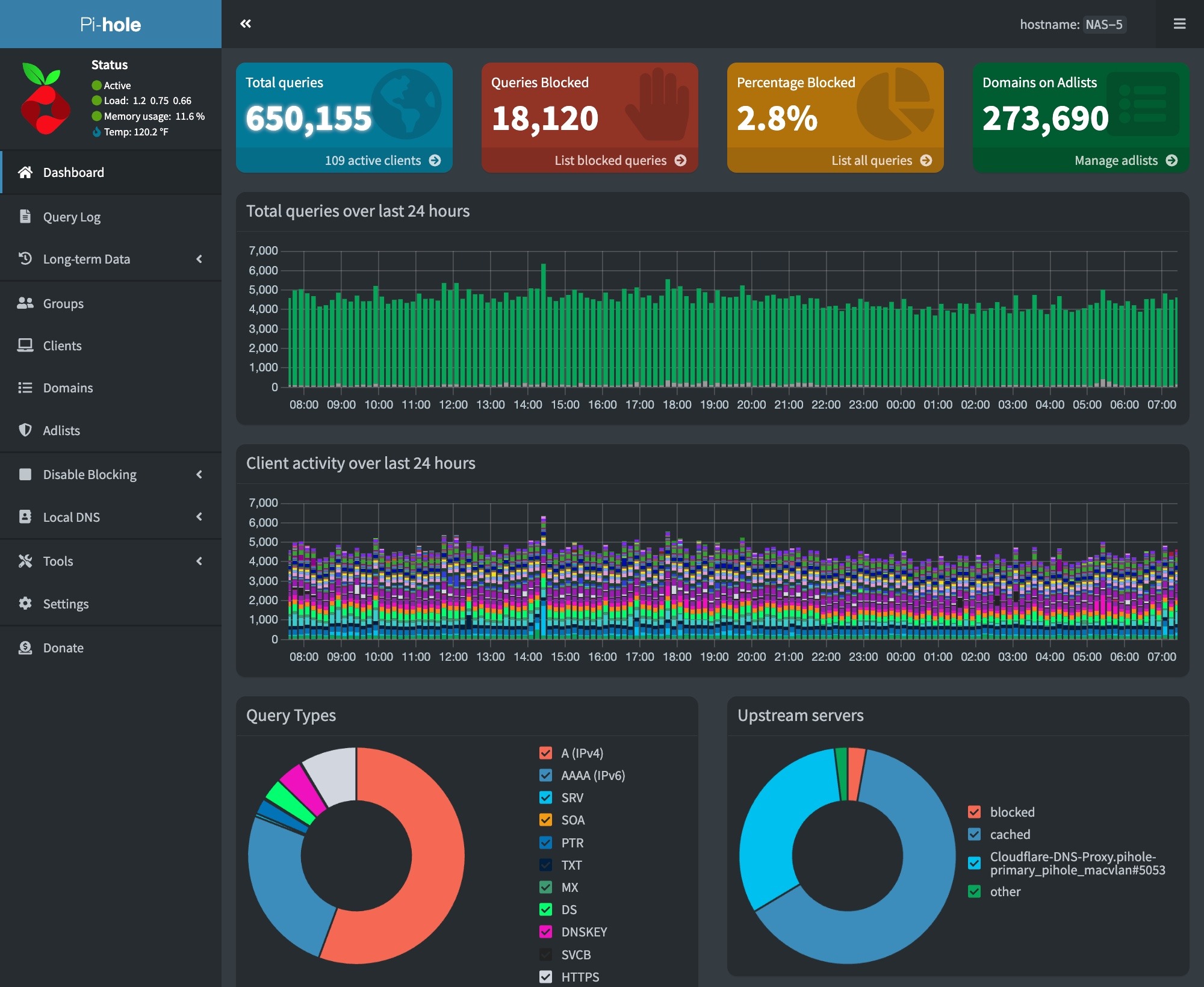
We’ll deploy PiHole by creating a Stack in Portainer using the Docker Compose template below.
Dockerfile – scroll to see more
# Deploy PiHole with an encrypted tunnel to Cloudflareservices: cloudflared: container_name: cloudflared image: cloudflare/cloudflared:latest security_opt: - no-new-privileges:true# Restart on crashes and reboots restart: unless-stopped# Cloudlflare tunnel used in proxy DNS mode command: proxy-dns environment:# Use standard Cloudflare DNS servers for Internet - "TUNNEL_DNS_UPSTREAM=https://1.1.1.1/dns-query,https://1.0.0.1/dns-query"# Listen on an unprivileged port - "TUNNEL_DNS_PORT=5053"# Listen on all interfaces - "TUNNEL_DNS_ADDRESS=0.0.0.0"# Attach Cloudflared only to the private network networks: pihole_internal: ipv4_address: 172.70.9.2 pihole: container_name: pihole image: pihole/pihole:latest hostname: pitech-pihole security_opt: - no-new-privileges:true# Restart on crashes and reboots restart: unless-stopped# Set external ports for PiHole access ports: - "53:53/tcp" - "53:53/udp"# - "67:67/udp" - "500:80/tcp"# - "443:443/tcp"# Attach PiHole to the private network networks: pihole_internal: ipv4_address: 172.70.9.3 environment:# Set local timezone TZ: 'America/New_York'# Substitute your strong password FTLCONF_webserver_api_password: '<your pihole dashboard password goes here>' FTLCONF_webtheme: 'default-dark' FTLCONF_dns_upstreams: '172.70.9.2#5053' # Use Cloudflared tunnel FTLCONF_dns_listeningMode: 'all' FTLCONF_dns_dnssec: 'true'# Volumes stores your PiHole settings volumes: - '/DATA/AppData/pihole/:/etc/pihole/'# Make sure Cloudflare tunnel is up before PiHole depends_on: - cloudflared# Create the internal private networknetworks: pihole_internal: ipam: config: - subnet: 172.70.9.0/29. # Allows for 4 IP addresses on network name: pihole_internal
PiHole Docker Compose Template
Once our PiHole stack is up and running, we can access our PiHole dashboard via our web browser using the URL below –
http://<your server IP>:500/admin/
You’ll want to set up A and CNAME records for your IP devices and services. You will also need a DNS A Record to point at your new server: server-name.your-domain.
Hence, we will change the DHCP setup in your router to make your network’s DNS IP your PiHole server.
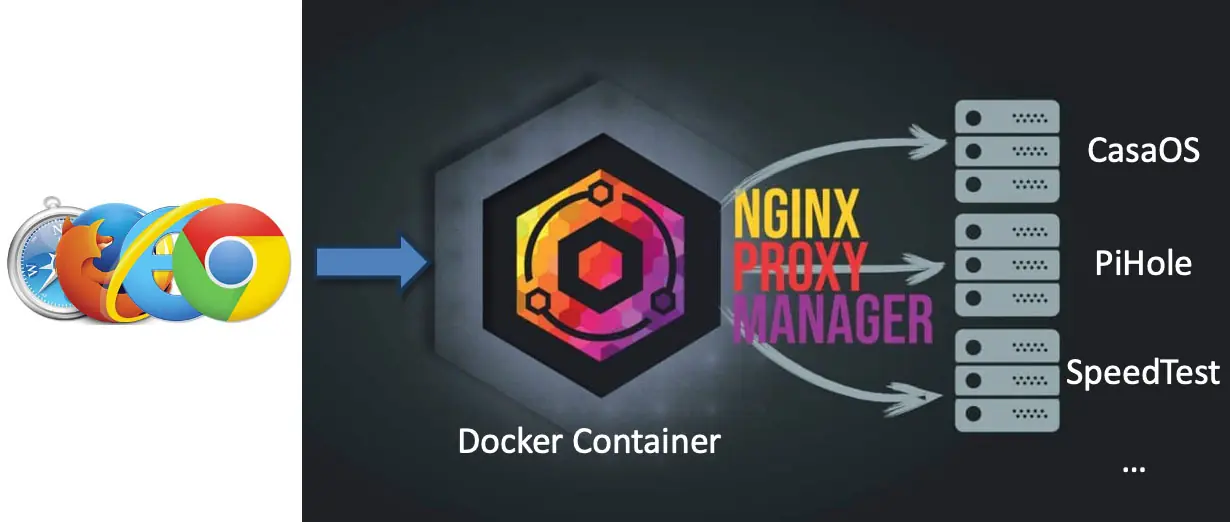
Next, we’ll set up Nginx Proxy Manager (NPM). NPM will offer several valuable services for us, including –
The ability to use subdomain names for our services and automatically add the correct port numbers for our hosted services
We will obtain a signed wildcard SSL certificate for our domain from Let’s Encrypt. This certificate will allow secure web connections (https) for our services. NPM will use a DNS-01 Challenge to obtain our SSL certificate. This way, we won’t have to open any ports to the Internet.
We can use the Docker Compose template below to deploy Nginx Proxy Manager in Portainer.
Dockerfile – scroll to see more
# Nginix Proxy Manager: Reverse Proxyservices: app: image: 'jc21/nginx-proxy-manager:latest' restart: unless-stopped security_opt: - no-new-privileges:true# Internal network for communicating with the database networks: - proxy# Expose ports to the outside world ports: - '80:80' - '81:81' # For configuration GUI - '443:443' environment: DB_MYSQL_HOST: 'db' DB_MYSQL_PORT: 3306 DB_MYSQL_USER: 'npm' DB_MYSQL_PASSWORD: '<your DB password>' # Replace with a strong password DB_MYSQL_NAME: 'npm'# Persistent storage for npm configuration and SSL certs volumes: - /DATA/AppData/nginx-proxy-mgr/data:/data - /DATA/AppData/nginx-proxy-mgr/letsencrypt:/etc/letsencrypt db: image: 'jc21/mariadb-aria:latest' restart: unless-stopped security_opt: - no-new-privileges:true# Join the internal network networks: - proxy environment: MYSQL_ROOT_PASSWORD: '<your DB password>' # Replace with the same strong password MYSQL_DATABASE: 'npm' MYSQL_USER: 'npm' MYSQL_PASSWORD: '<your DB password>' # Replace with the same strong password# Persistent storage for the configuration database volumes: - /DATA/AppData/nginx-proxy-mgr/mysql:/var/lib/mysql# Define the private internal networknetworks: proxy: name: npm_proxy
The video above covers the configuration of NPM. We can use the same Cloudflare API token we obtained for the DDNS Service to create our SSL certificate.
We can now set up our apps to use NPM and our SSL domain’s wildcard SSL certificate. Additionally, the steps to add a Proxy Host for each service in NPM are as follows –
Set up a subdomain for the service in PiHole
Set up a service proxy host in NPM using:
Your Server IP and the port for your Service
Also, set the options to Block Common Exploitsand turn on WebSockets Support.
Next, apply your domain’s SSL certificate and Force SSL to be used
Finally, use HTTP/2 (except for OpenSpeedTest) and turn on HSTS and HSTS sub-domain support.
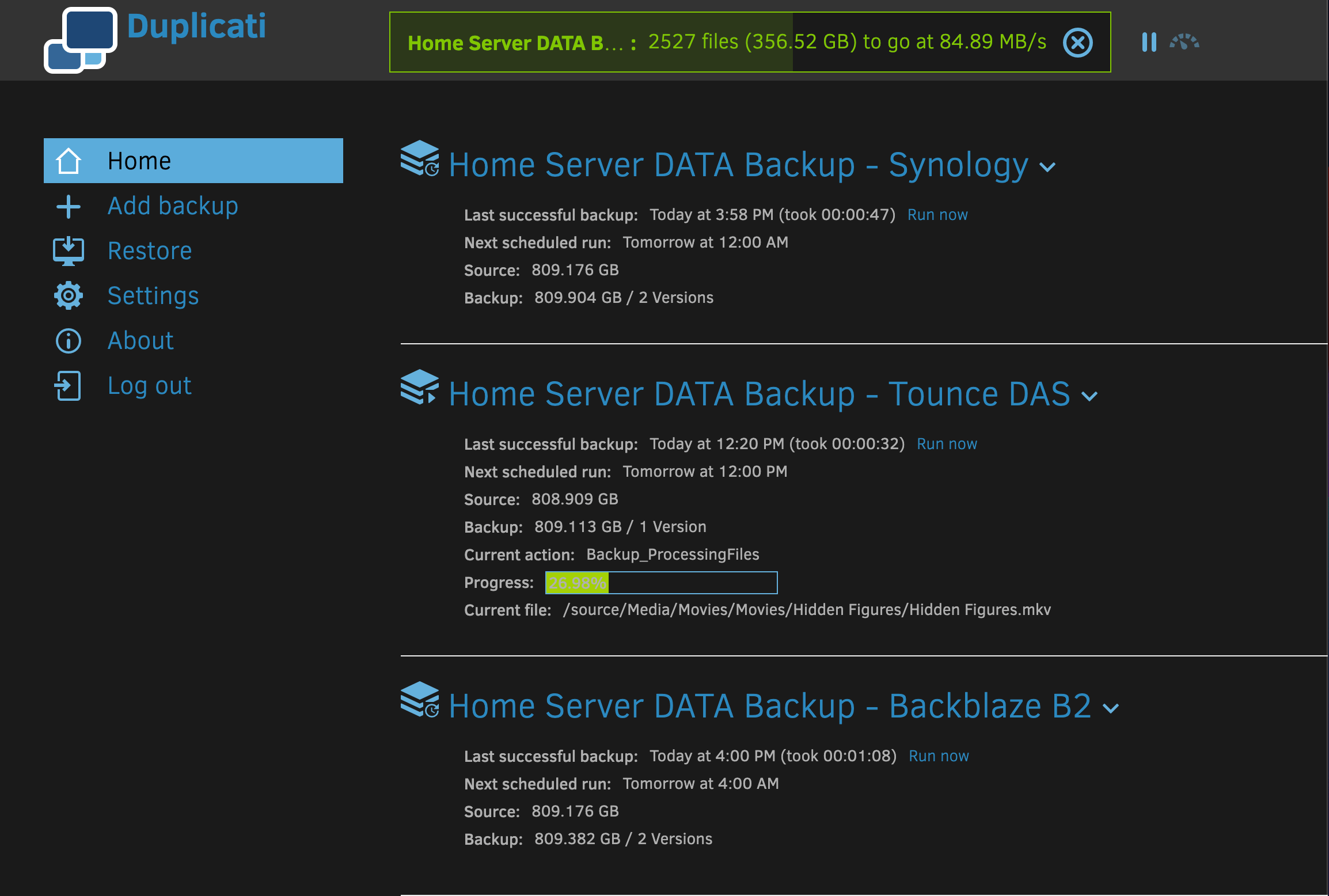
We can use the Duplicati Backup app. It allows us to back up the data stored on our Raspberry Pi Home Server and configuration information. As a result, we have a backup solution that provides deduplication and encrypted backups. It offers a variety of local, network, and cloud backup destinations.
Duplicati can be deployed as a Portainer Stack using the following template.
Dockerfile – scroll to see more
# Duplicati: backup files and folders to a variety of storesservices: duplicati: image: lscr.io/linuxserver/duplicati:latest container_name: duplicati restart: unless-stopped security_opt: - no-new-privileges:true# Set the port for GUI access ports: - 8200:8200 environment: - PUID=1000 - PGID=1000# Set local timezone - TZ=America/New_York# Choose a default for encryption - replace it with a strong key - SETTINGS_ENCRYPTION_KEY='<replace with your strong key>'# Can add args when this container is launched - CLI_ARGS= #optional# Initial password will be 'changeme' if left blank - DUPLICATI__WEBSERVICE_PASSWORD=# Set locations of sources for backups and destination stores volumes:# Location for configuration storage - /DATA/AppData/duplicati/config:/config# Location for local backup storage on this server - /Backups:/backups# Root folder for creating backups - Using CasaOS DATA directory - /DATA:/source
Duplicati Backup Docker Compose template
You should create the /Backup directory in your Raspberry Pi Home Server using the CasaOS Terminal. The root user should own this directory and have access mode 777.
To back up your data and applications completely, a few steps are required.
Backup your Docker Volume Data (only required when adding or changing application configuration).
Make backups of your settings in PiHole and Portainer and store them in your Configs folder in CasaOS. This is only required when you change your PiHole DNS or Portainer’s configuration.
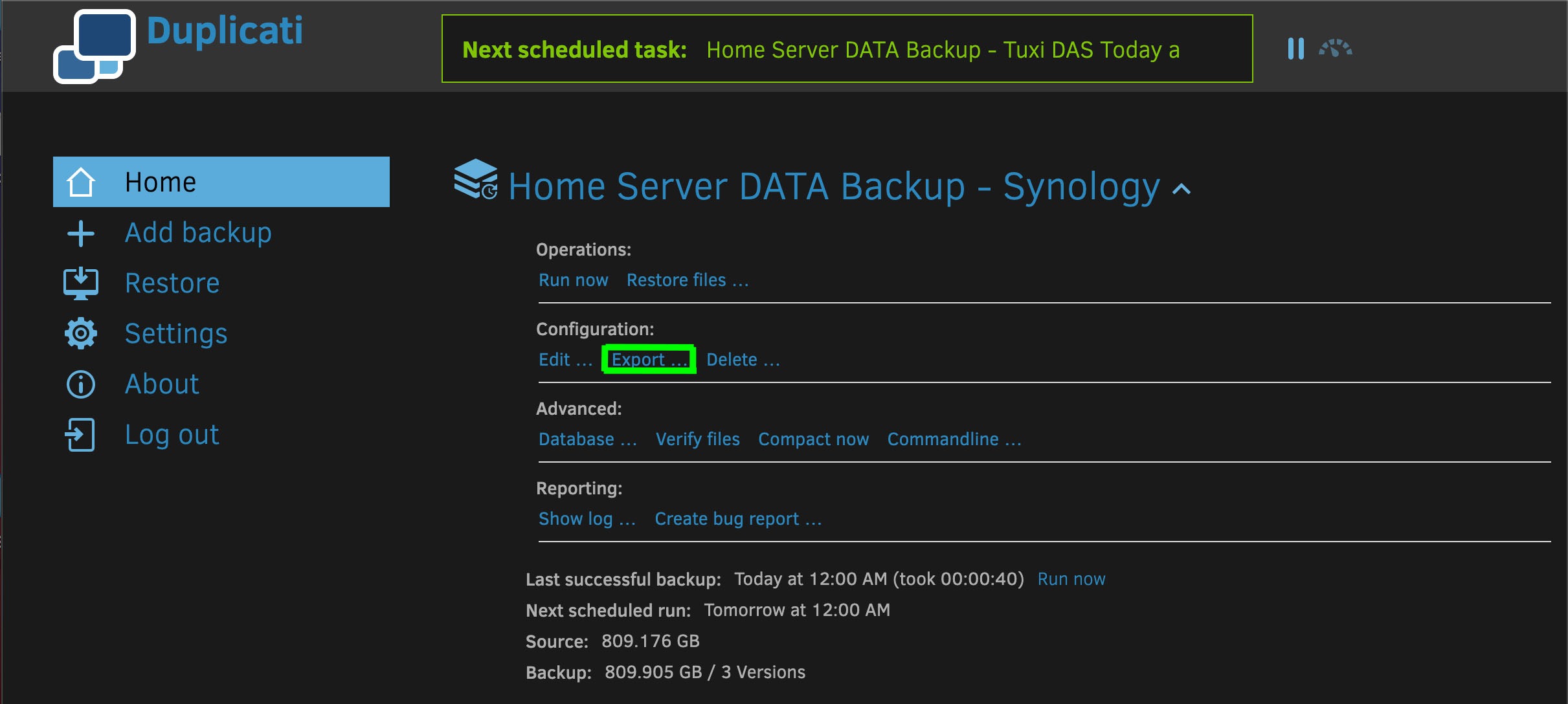
Backup your Duplicati backup configurations (only required when you add or change the backups configured in Duplicati).
Run a manual or scheduled backup using Duplicati.
Steps 1 – 3 above are only required when adding or reconfiguring applications. These steps apply to Duplicati backups and/or DNS records on your Home Server. Typically, you will run scheduled Duplicati backups. This will capture your data stored in CasaOS shares, including the configuration information that you saved via steps 1 – 3.
We want to include copies of the Docker volumes and configuration data for all our Apps in our backups. To do this, copy the scripts in this section to your home directory on your Home Server. Then, execute them remotely via SSH from your PC. Also, remember to make the scripts executable and run them as the root user.
Backup Script
Bash Script – scroll to see more
#!/bin/bash## bu-config.sh - Script to make .zip backups of all our# docker continer volume data folders. Backup .zip files# are stored in CasaOS Configs folder.## usage: $ sudo bash ./bu-config.sh## Note: This script must be executed remotely via SSH. Do not# use the CasaOS Terminal.# ConfigurationDATE_STR=`date +%F_%H-%M-%S%Z`BACKUP_DIR="/DATA/Configs"APP_DIR="AppData"DOCKER_ROOT="/DATA/$APP_DIR"# Make sure we are running as rootif [ "$EUID" -ne 0 ]thenecho"Please run as root"exit1fi# Make sure backup folder existsif [ ! -d "$BACKUP_DIR" ]then# Need to create the backup directorymkdir"$BACKUP_DIR"# Set owner, group, and mode - follow CasaOS standardchownroot:root"$BACKUP_DIR"chmod777"$BACKUP_DIR"fi# Warn user not to run this script from the CasaOS Terminalecho-e"\n*** WARNING: You cannot run this script using the CasaOS Terminal - use ssh from your PC insted ***"# Confirm its OK to stop containersecho-e"\n*** The following docker containers are running ***"dockerps--format'{{.Names}} - {{.Status}}' | sed-e's/^/ /'read-p"OK to stop these containers (type yes to continue)? "respif [[ "$resp" != "yes" && "$resp" != "y" ]]thenecho">>> Backup aborted <<<"exit2fi# Stop all docker containersecho-e"\n*** Stopping docker containers ***"dockerps--format'{{.Names}} - {{.Status}}' | sed-e's/^/ /'dockerstop$(docker ps -q) > /dev/null# Create a backup and set owner/permissions for each folderecho-e"\n*** Creating backups of Apps in $DOCKER_ROOT in $BACKUP_DIR ***"cd$DOCKER_ROOTforFOLDERin *do# Skip files - folders onlyif [ -f $FOLDER ]thencontinue;fi# Backup filename and full pathnameBACKUP_FILE=BU_"$FOLDER"_"$DATE_STR".zip# Avoid problems mixing _ and $VARBACKUP_PATH="$BACKUP_DIR/$BACKUP_FILE"# Create the backupecho-e" Backing up $FOLDER to $BACKUP_PATH"zip-q-r"$BACKUP_PATH"$FOLDER# Set owner/permissionschownroot:root"$BACKUP_PATH"chmod766"$BACKUP_PATH"# Show size of backupcd$BACKUP_DIRecho-e" `du-h$BACKUP_FILE|sed-e 's/\s\+/ - /g'`\n"cd$DOCKER_ROOTdone# Handle files in docker root directoryBACKUP_FILE=BU_"$APP_DIR"_"$DATE_STR".zip# Avoid problems mixing _ and $VARBACKUP_PATH="$BACKUP_DIR/$BACKUP_FILE"# Create the backupecho-e" Backing up $APP_DIR files to $BACKUP_PATH"cd$DOCKER_ROOTzip-q$BACKUP_PATH*# Set owner/permissionschownroot:root"$BACKUP_PATH"chmod766"$BACKUP_PATH"# Show size of backupcd$BACKUP_DIRecho-e" `du-h$BACKUP_FILE|sed-e 's/\s\+/ - /g'`\n"cd$DOCKER_ROOT# Start all docker containersdockerstart$(docker ps -a-q) > /dev/nullecho-e"*** Started docker containers ***"dockerps--format'{{.Names}} - {{.Status}}' | sed-e's/^/ /'# All doneexit0
Backup Script for Docker Volumes
We have developed a custom shell script (referenced above) that effectively terminates all running Docker containers. Then, it generates zip backups of each application’s Docker volumes. Finally, the script restarts all Docker containers. Additionally, it creates a new Configs folder within CasaOS. After executing the script initially, you should share this folder.
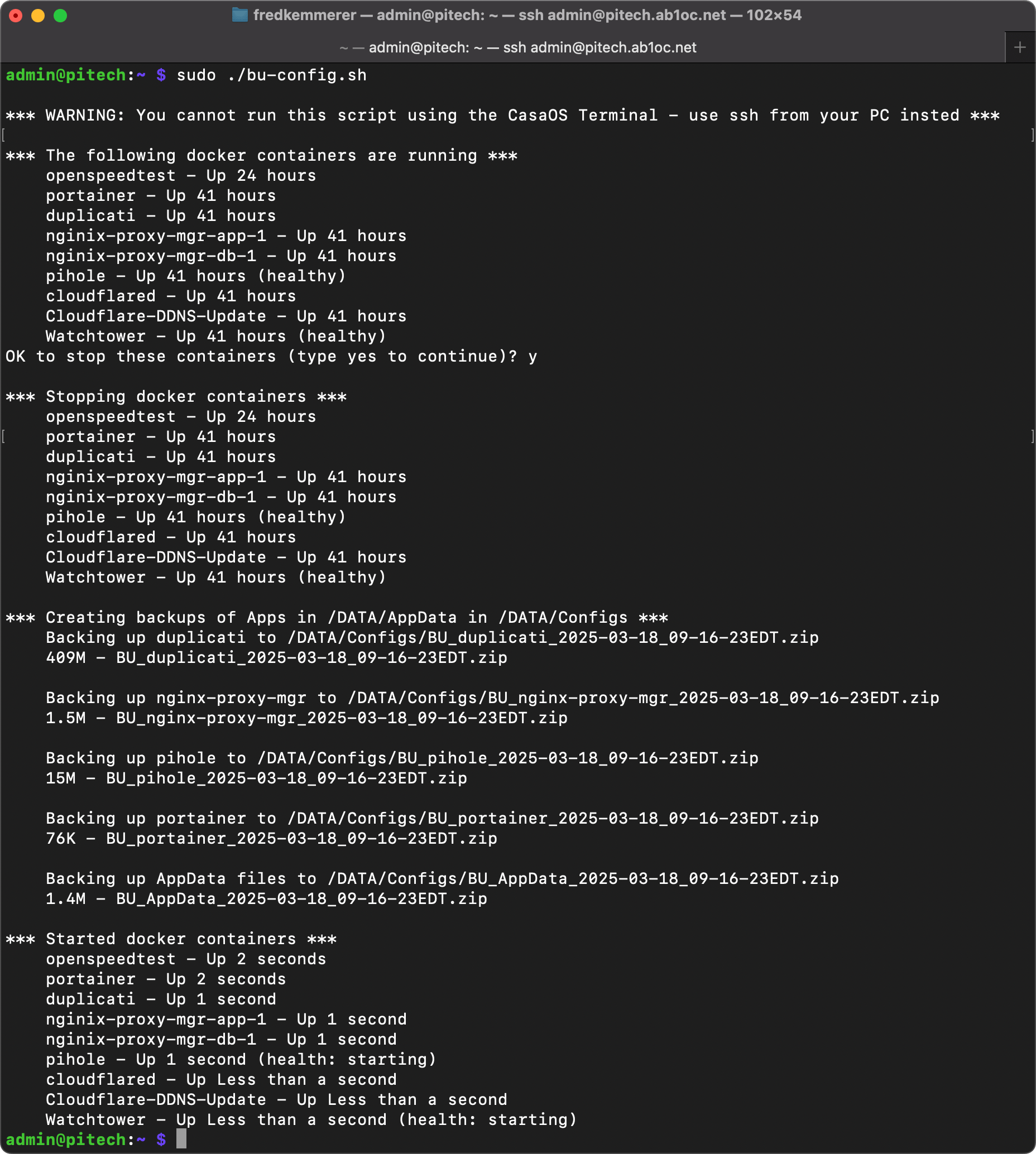
Example Execution
Example Execution of Configuration Backup Script
The above image shows an example of the script’s execution. You must run this script as the root user via SSH from a PC or external server. You can’t execute the script from the CasaOS Terminal.
Docker Recovery Script
The Docker backup script could fail, preventing your containers from being restarted. While this is unlikely, we’ve created the script below to restart your existing Docker containers.
Bash Script
#!/bin/bash## restart-apps.sh - Script to restart Docker containers# if the backup script fails## usage: $ sudo bash ./restart-apps.sh## Note: This script must be executed remotely via SSH. Do not# use the CasaOS Terminal.## Make sure we are running as rootif [ "$EUID" -ne 0 ]thenecho"Please run as root"exitfi# Start all docker containersdockerstart$(docker ps -a-q) > /dev/nullecho-e"*** Started docker containers ***"dockerps--format'{{.Names}} - {{.Status}}' | sed-e's/^/ /'# All doneexit0
PiHole and Portainer Application Configuration Backup
PiHole, Portainer, and Duplicati have specific commands in their GUIs to back up their settings. You can use these to download backups to your PC. Then, move them to the CasaOS Configs folder for Duplicati to backup.
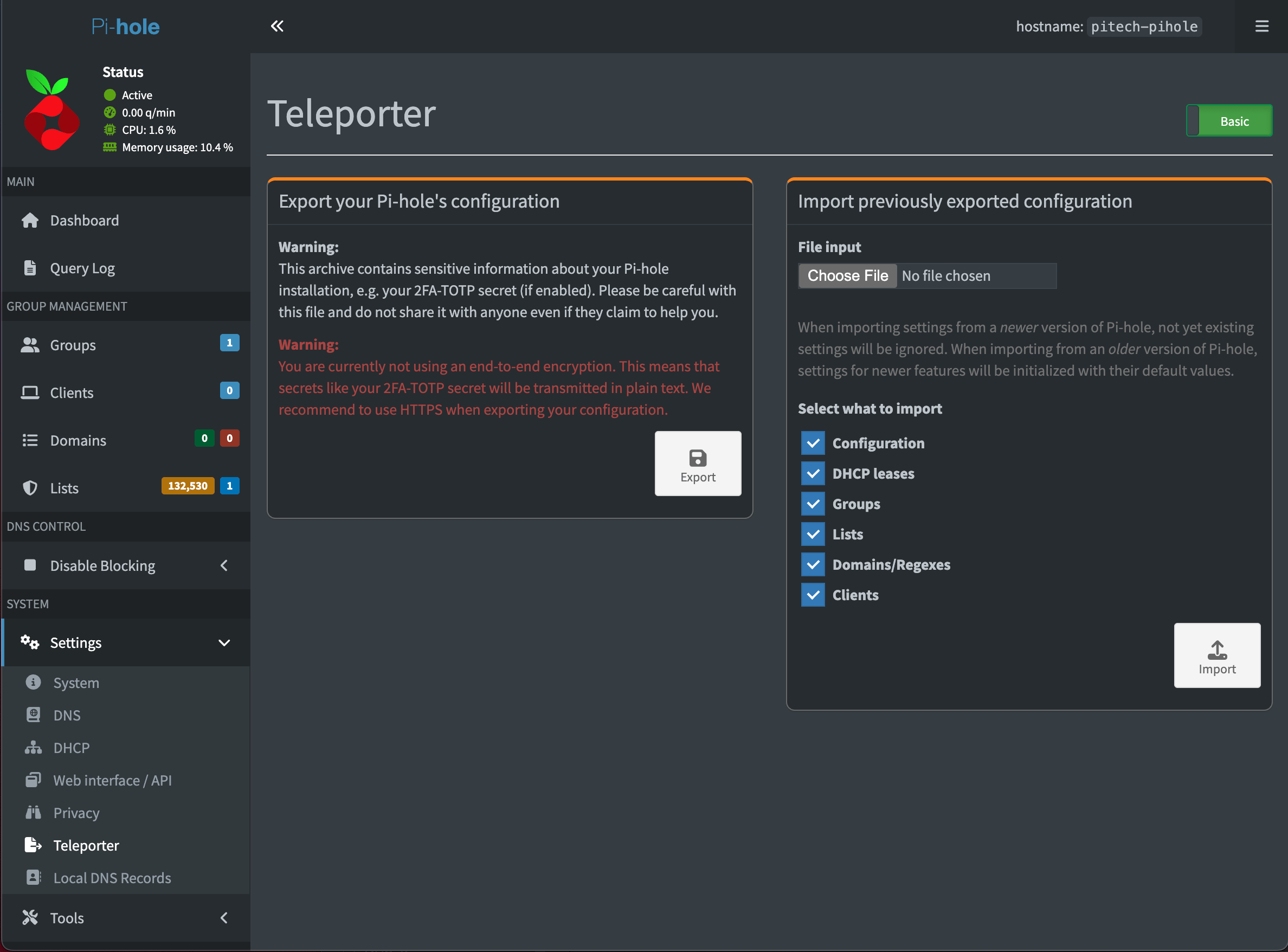
PiHole
PiHole Teleporter – Settings Backup
Using the Teleporter item under Settings, you can back up PiHole’s entire configuration, including all your custom DNS records. After downloading the backup to your PC, move it to the CasaOS Configs folder for Duplicati to backup.
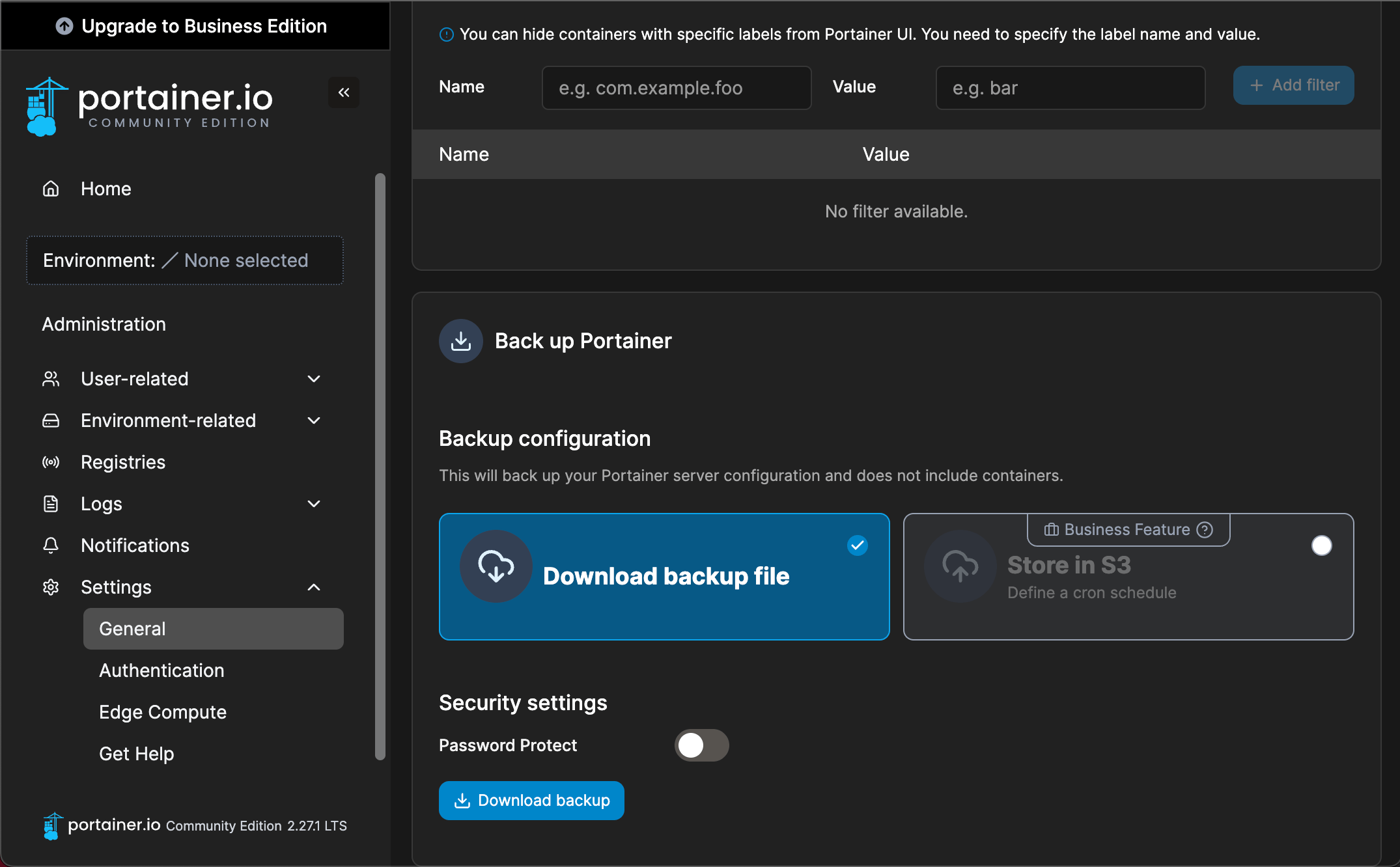
You can back up Portainer’s program configuration using the “Download backup” button under Administration/Settings. After downloading the backup to your PC, move it to the CasaOS Configs folder for Duplicati to backup.
Note that this process does not back up your Stacks, Containers, Images, or Volume Data. It only backs up the Portainer app’s configuration.
You can recreate your Stacks using these two steps –
First, use the Docker Volume Backup zip files. Restore your persistent volumes in the CasaOS AppData folder.
Second, use the Docker Compose templates you used to create the containers.
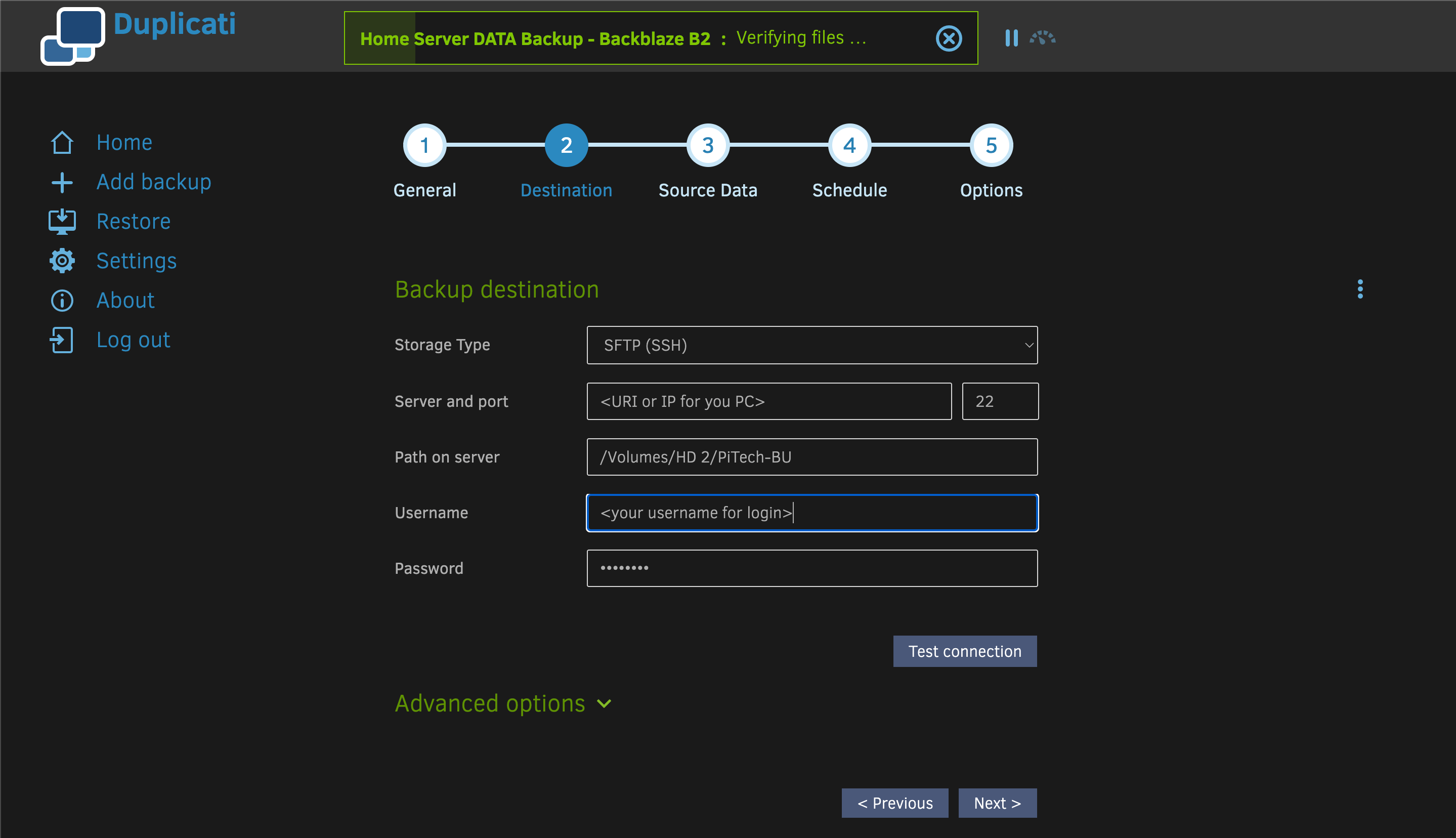
Duplicati can store backups on any device using the SFTP protocol. SFTP is secure and can transfer your backup data over your home network.
Configuring an SFTP Backup Destination in Duplicati
Duplicati SFTP Backup Destination Configuration – macOS System with USB Hard Drive Example
You can set up Duplicati to use any SFTP storage server as a backup destination. Enter the SFTP URI and login information. The Path on server setting depends on the folder on the target device. This folder will store your backups.
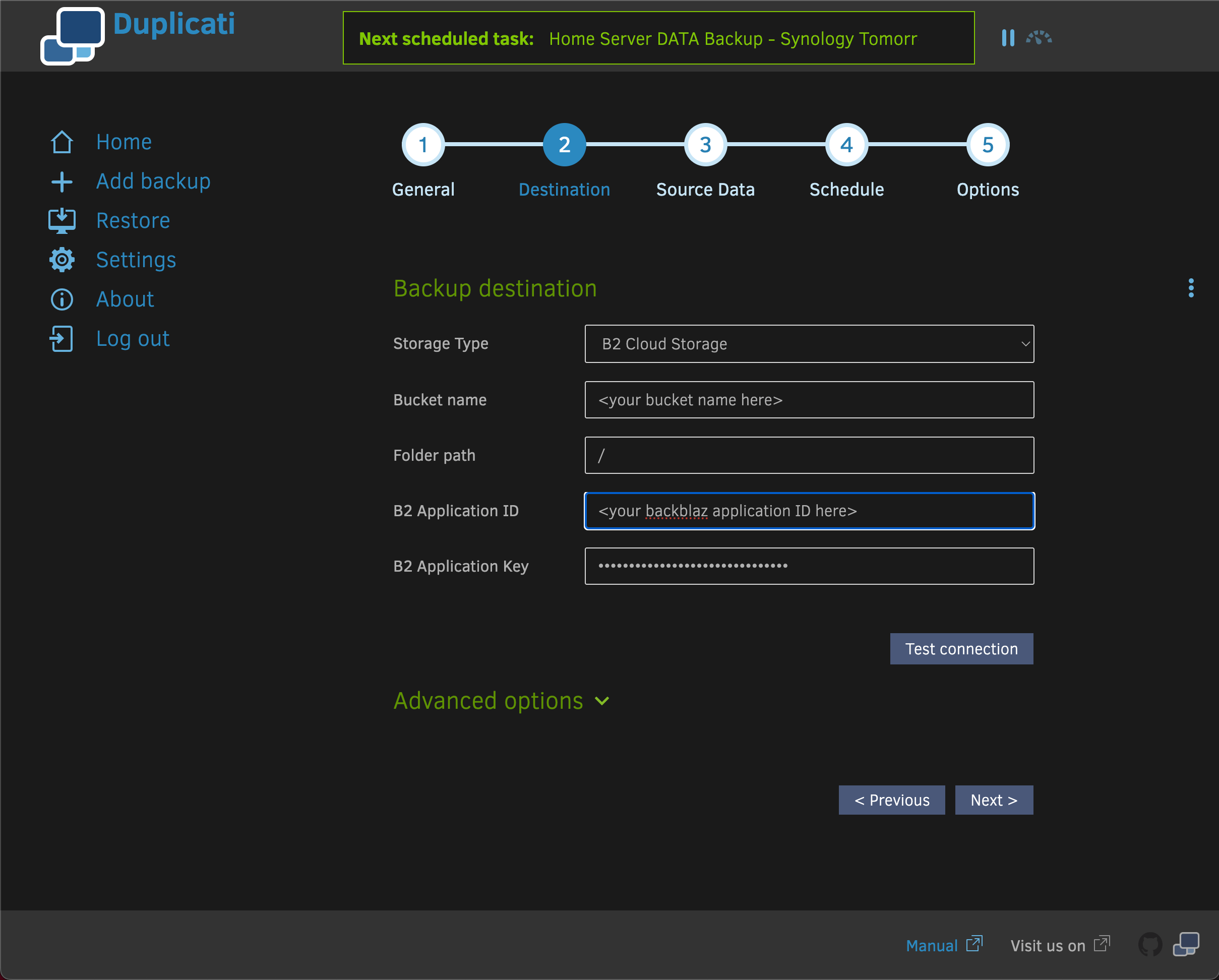
Backblaze B2 offers cost-effective cloud storage for your backups. To start, sign up for a B2 storage account on Backblaze. Then, create a bucket to store your backups. Finally, set up a backup destination in Duplicati. The configuration in Duplicati is shown below.
Backblaze B2 Backup Destination Configuration in Duplicati
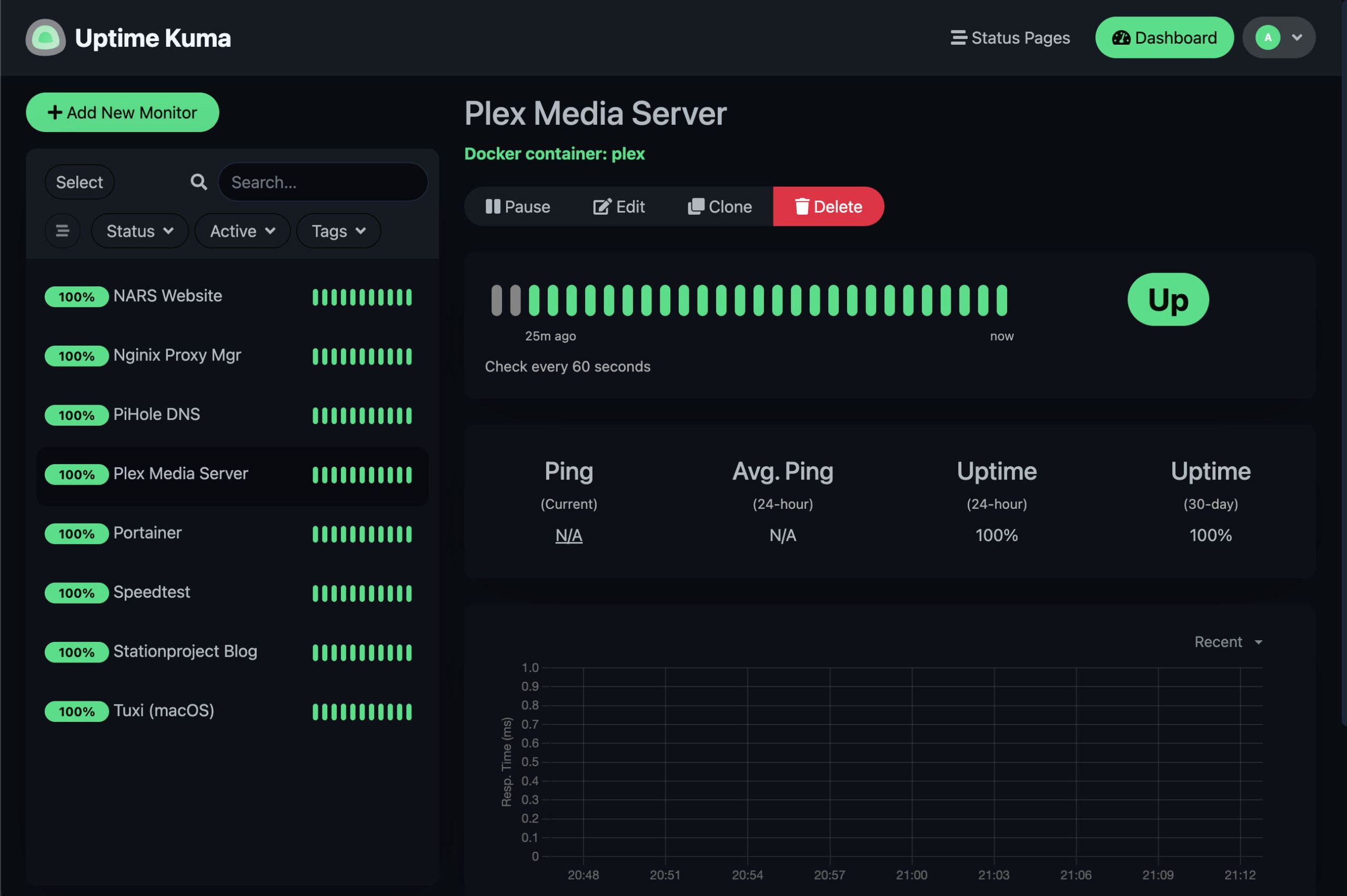
Our next service is Uptime Kuma. This app can check IP devices, services, websites, and anything with an IP address. It helps by confirming that everything on your network is up and running. Additionally, it ensures that everything in the cloud you care about is operational.
We will again use a Portainer Stack to deploy Uptime Kuma. The Docker Compose template is shown below.
Dockerfile
# Uptime Kuma: monitor services, websites, and devicesservices: uptime-kuma: container_name: Uptime-Kuma image: louislam/uptime-kuma:latest restart: unless-stopped security_opt: - no-new-privileges:true# External port for accessing GUI ports: - '4001:3001'# Set specific DNS server to find local services dns: - <your home server IP> # Replace with your server IP# Persistent storage for configuration/docker access volumes: - /DATA/AppData/uptime-kuma:/app/data - /var/run/docker.sock:/var/run/docker.sock
You can set up Uptime Kuma to send texts or emails when a monitored device or service goes down. For more information, see the settings sections inside the App.
You must create an account on plex.tv before starting the installation. Also, you will want to open port 32400 in your router and point it to your home server. This will allow you to access your media from outside your home via the Internet.
We can install Plex Media Server using a Portainer Stack. First, prepare your Stack for deployment by obtaining a Plex Claim Token and pasting it into your Stack in Portainer. Note that your Claim Token is only valid for 4 minutes, so you should deploy your Stack quickly. You can use the Docker Compose template below to deploy Plex.
Dockerfile
# Plex Media Server: Access multimedia content from anywhereservices: plex: container_name: plex image: lscr.io/linuxserver/plex:latest restart: unless-stopped security_opt: - no-new-privileges:true# Causes all Plex media server ports to be passed to the outside network_mode: host environment: - PUID=1000 - PGID=1000 - TZ=America/New_York - VERSION=docker - PLEX_CLAIM=claim-<insert your plex claim token here># Must point to CasaOS Media folders and AppData (for config info) volumes: - /DATA/AppData/plex/config:/config - /DATA/Media/TV Shows:/tv - /DATA/Media/Movies:/movies - /DATA/Media/Music:/music
Once you have deployed your stack, you can create a subdomain name for Plex in PiHole. Next, set up a proxy host for Plex in Nginx Proxy Manager. Finally, open your Plex Server in your web browser and log in to your account.
You should now have Plex Media Server up and running and ready to be configured. The video below explains how to do so.
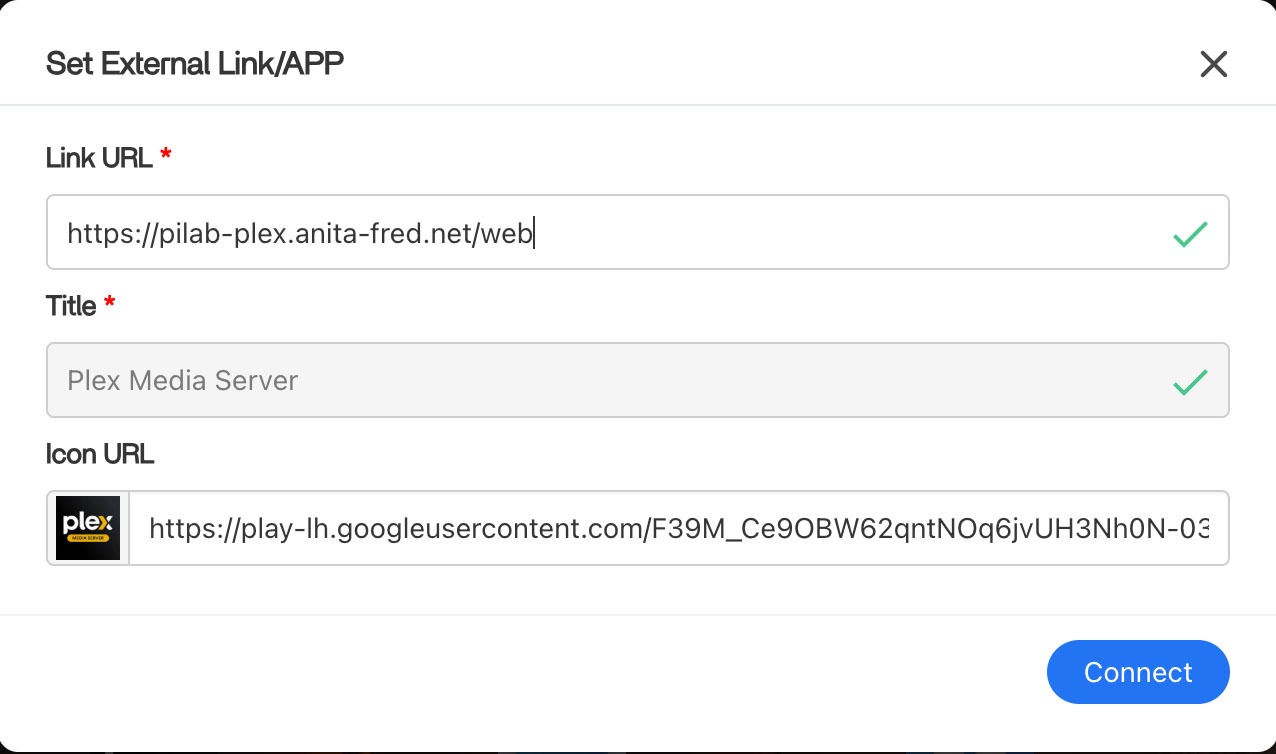
If you’ve followed all of the steps, you should now have your Raspberry Pi Home Server fully set up. The last thing to do is create shortcuts in the Apps section of your CasaOS dashboard for all your Apps.
Some of your Apps will already have shortcuts. To add a new one, click the “+” on the right side of the Apps label. Then, choose Add external link and set up a link.
App Shortcut for Plex Media Server
You can use the subdomain names you created for your Nginx Proxy Manager Proxy Hosts. You should use https in your shortcuts. Finally, look around the web for a URL to a small graphic to use as an icon for your shortcut.
If you’ve gotten this far, you now have a capable Raspberry Pi Home Server and NAS. You’ve also built a platform using Cloudflare, Nginx Proxy Manager, and PiHole to allow you to do much more.
Here are a few projects that we plan to do on our home server in the future –
We’ll be setting up a WordPress website and exposing it to the Internet
We’ll install Home Assistant and use it to manage our Smart Home devices
Also, we’ll be installing a home lab dashboard like Dashy to offer a simple user interface for all of our services
Many of these services are already running on the Docker/Portainer system that runs on our Proxmox Cluster. You can also find information about these here.
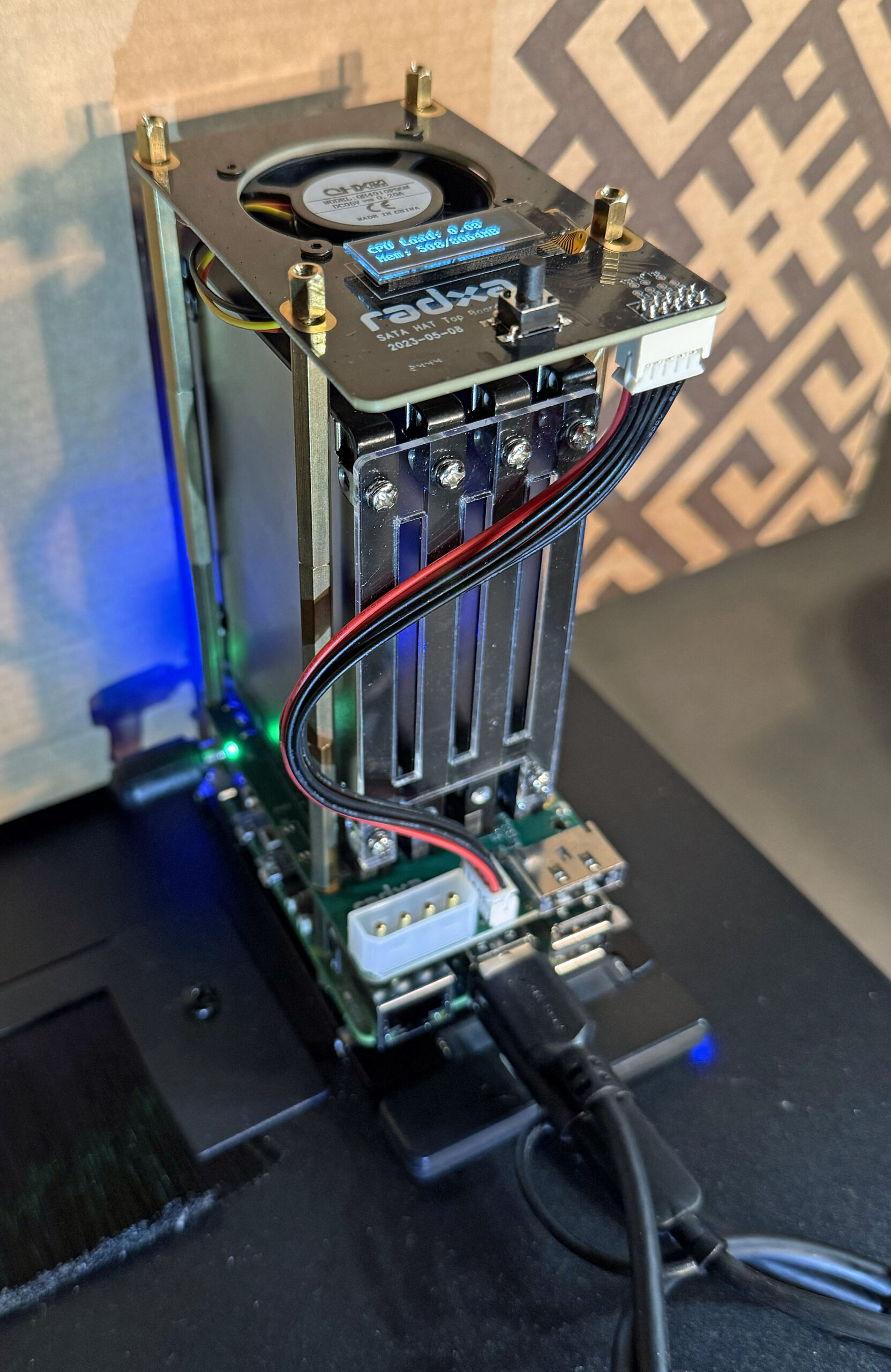
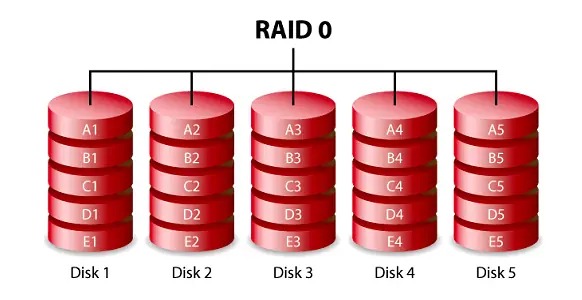
We’ve built a second NAS and Docker environment using another Raspberry Pi 5. This NAS features four 2.5 in 960 GB SSD drives in a RAID-0 array for fast shared storage on our network.
Raspberry Pi NAS Hardware Components
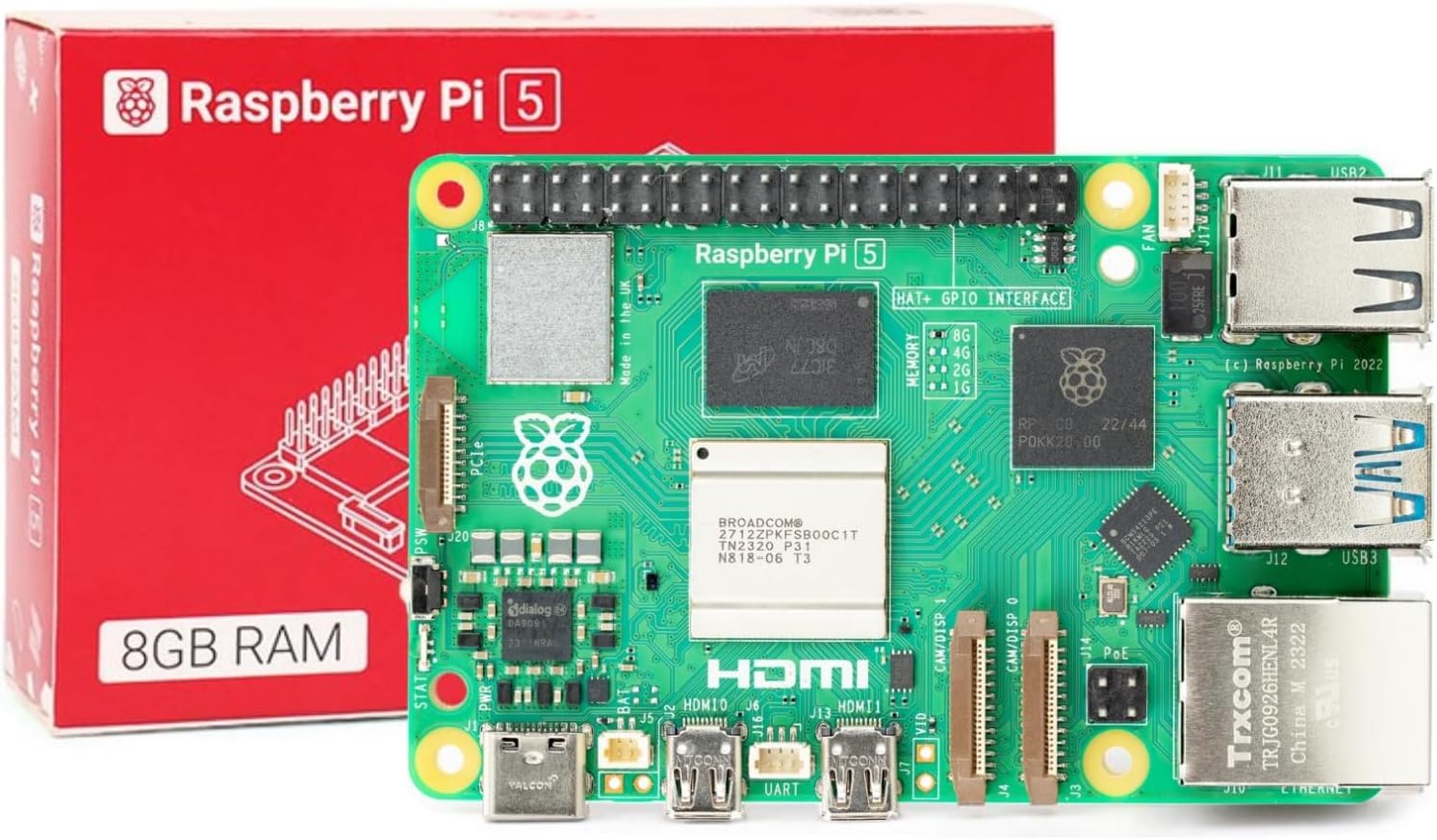
Raspberry Pi 5 Single Board Computer
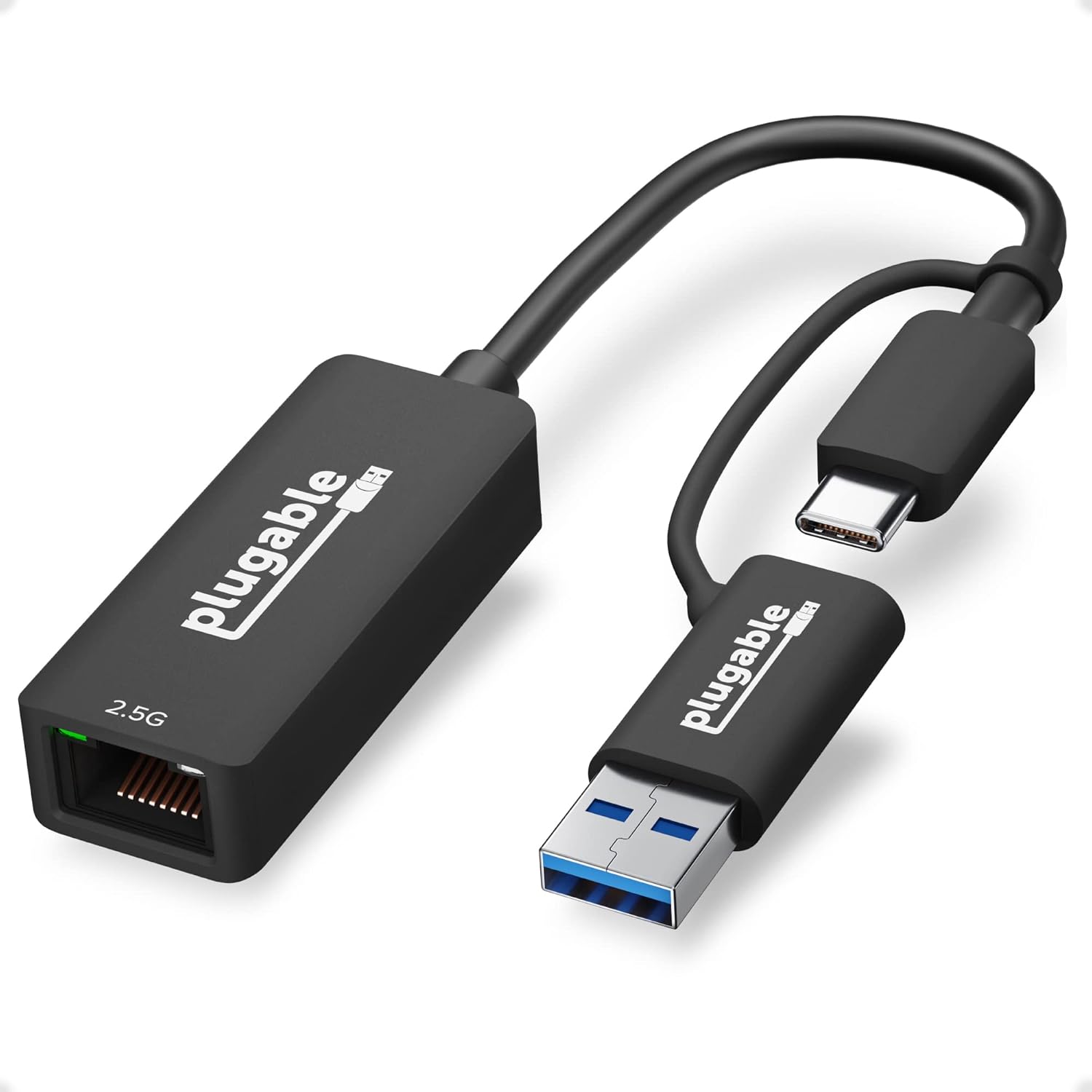
We use the following components to build our system –
CasaOS – for docker environment and container applications
CassaOS
CasaOS Web UI
CasaOS is included to add a very nice GUI for managing each of our NUT servers. Here’s a useful video on how to install CasaOS on the Raspberry Pi –
Installation
The first step is to install the 64-bit Lite Version of Raspberry Pi OS. This is done by first installing a full desktop version on a flash card and then using Raspberry Pi Imager to install the lite version on our SSD boot drive. We did this on our macOS computer using the USB to SATA adapter and belenaEtcher.
We used the process covered in the video above to install CasaOS.
Creating a RAID
We choose to create a RAID-0 array using the four SSD drives in our NAS. Experience with SSD drives in a light-duty application like ours indicates that this approach will be reasonably reliable with SSD drives. We also backup the contents of the NAS daily to another system via Rsync to one of our Synology NAS drives.
RAID-0 Storage Array
CasaOS does not provide support for RAID so this is done using the underlying Linux OS. The process is explained here.
File Share
CasaOS makes all of its shares public and does not password-protect shared folders. While this may be acceptable for home use where the network is isolated from the public Internet, it certainly is not a good security practice.
Fortunately, the Debian Linux-derived distro we are running includes Samba file share support, which we can use to protect our shares properly. This article explains the basics of how to do this.
Here’s an example of the information in smb.conf for one of our shares –
[Public]
    path = /DATA/Public
    browsable = yes
    writeable = Yes
    create mask = 0644
    directory mask = 0755
    public = no
    comment = "General purpose public share"
You will also need to create a Samba user for your Samba shares to work. Samba user privileges can be added to any of the existing Raspberry Pi OS users with the following command –
# sudo smbpasswd -a <User ID to add>
It’s also important to correctly set the shared folder’s owner, group, and modes.
We need to restart the Samba service anytime configuration changes are made. This can be done with the following command –
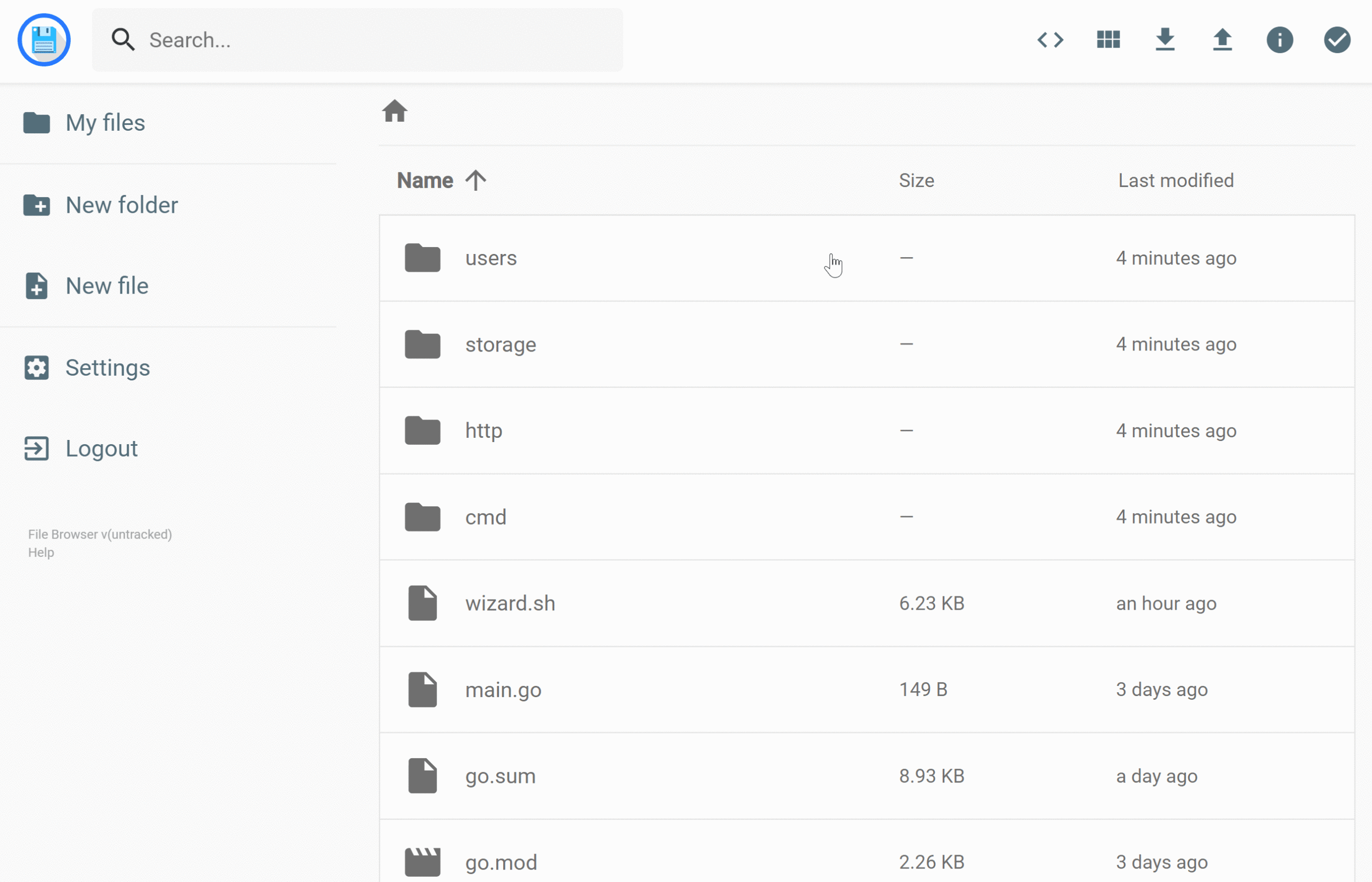
It is helpful to have access to files and directories associated with our Docker persistent volume stores. File Browser is a simple Docker container that provides a file manager.
Installation
The following video covers the installation and use of the File Browser container.