There are many reasons why you may need to expand Proxmox VM Storage. It is always challenging to grow a VM’s virtual disk in Proxmox. The process requires several steps. Mistakes can result in the loss of data. The video above provides an easy-to-understand guide on how to expand a VM disk.
Before beginning, your should make a backup. It also helps to format your VM disks using LVM thin provisioning.
The Networking configuration on our test node mirrors the setup in our Production Cluster. The table above outlines the Staging Cluster Node networking setup. A single LACP Bond (2 x 2.5 GbE) is shared between the Services and Storage vmbr’s.
Storage Configuration
Staging Node Storage Configuration
The table above shows the storage configuration for our Staging Cluster Nodes. PVE-Storage is implemented on our high-availability NAS.
Proxmox Backup Server Configuration
Backups for our Staging Cluster Nodes mirror the configuration and scheduling of Backups on our production Cluster (more info here).
Additional Configuration
The following additional items are configured for our Staging cluster nodes:
Community License to enable access to Enterprise Repositories
The following sections cover the setup and configuration of our monitoring stack.
Proxmox Monitoring Setup
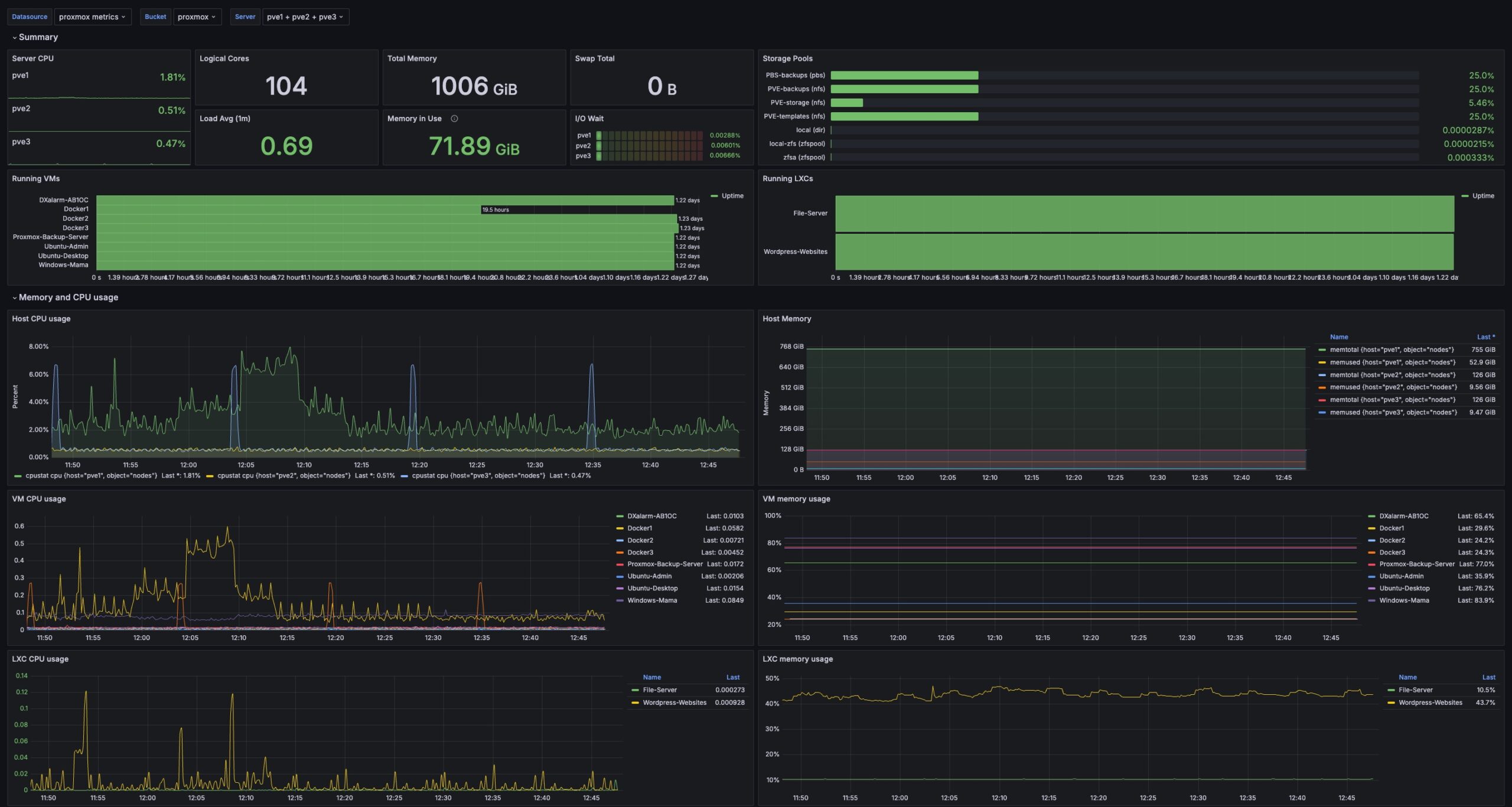
The following video explains how to set up a Grafana dashboard for Proxmox. This installation uses the monitoring function built into Proxmox to feed data to Influx DB.
And here is a video that explains setting up self-signed certificates –
This page covers the installation of the Proxmox Backup Server (PBS) in our HomeLab. We run the PBS in a VM on our server and store backups in shared storage on one of our NAS drives.
Make the NAS share mount permanent by adding it to /etc/fstab
vi /etc/fstab
...after the last line add the following line
# Mount PBS backup store from NAS
//nas-#.anita-fred.net/PBS-backups /mnt/pbs-store cifs vers=3.0,credentials=/etc/samba/.smbcreds,uid=backup,gid=backup,defaults 0 0
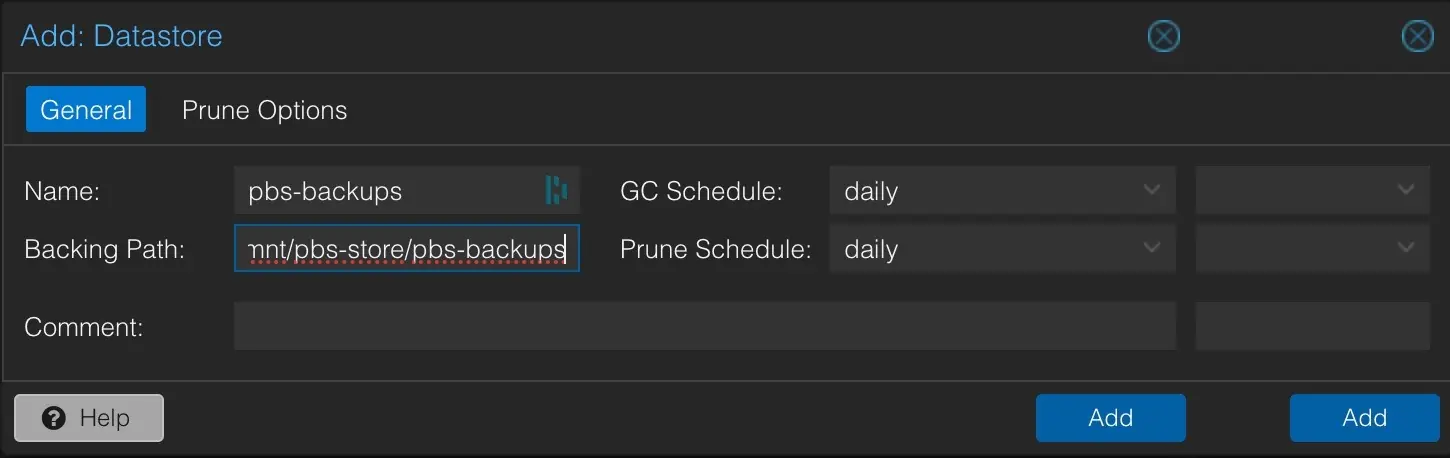
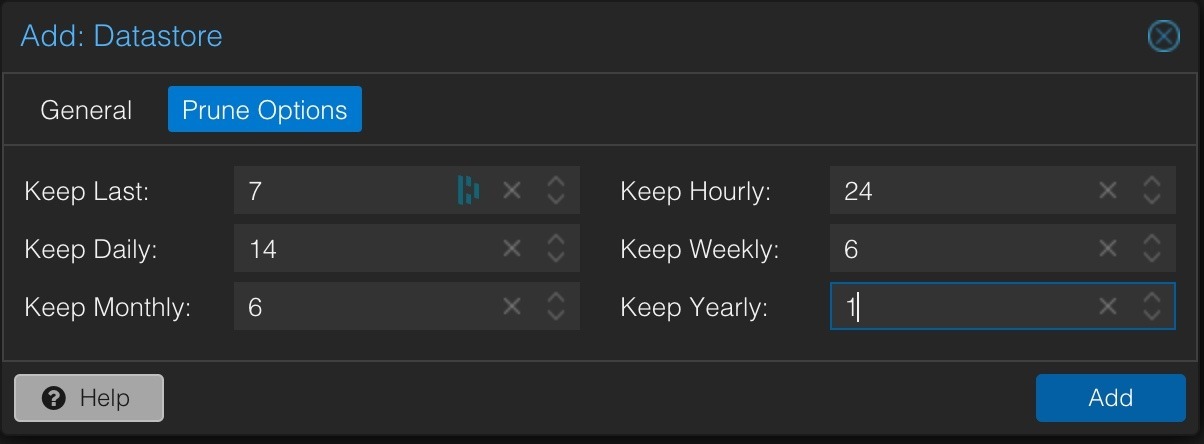
Create a datastore to hold the PBS backups in the Proxmox Backup Server as follows. The datastore will take some time to create (be patient).
PBS Datastore Configuration
PBS Datastore Prune Options
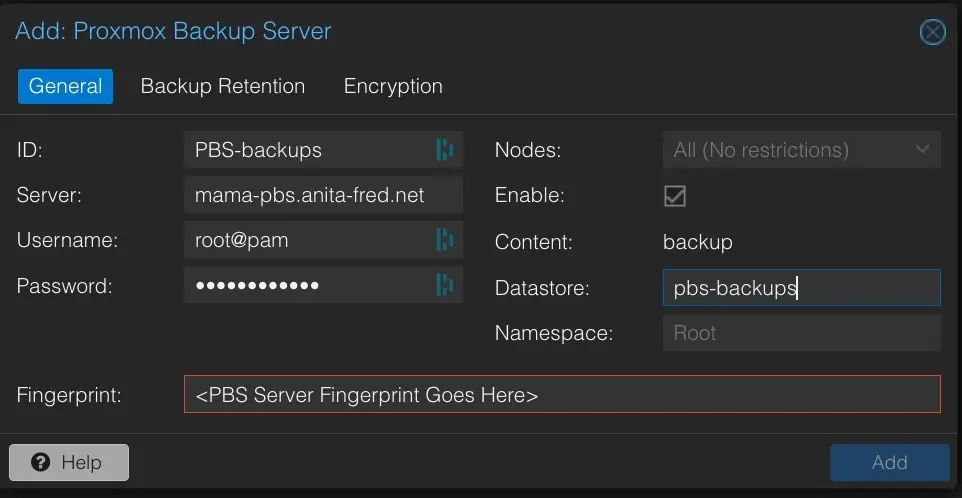
Add the PBS store as storage at the Proxmox datacenter level. Use the information from the PBS dashboard to set the fingerprint.
PBS Storage in Proxmox VE
The PBS-backups store can now be used as a target in Proxmox backups. NOTE THAT YOU CANNOT BACK UP THE PBS VM TO PBS-BACKUPS.
The NFS share for the Proxmox Backup store needs time to start before the Backup server starts on boot. This can be set for each node under System/Options/Start on Boot delay. A 30-second delay seems to work well.
Setup Backup, Pruning, and Garbage Collection
The overall schedule for Proxmox backup operations is as follows:
02:00 – Run a PVE Backup on the PBS Backup Server VM from our Production Cluster (run in suspend mode; stop mode causes problems)
02:30 – Run PBS Backups in all Clusters/Nodes on all VMs and LXCs EXCEPT for the PBS Backup Server VM
03:00 – Run Pruning on the all PBS datastores
03:30 – Run Garage Collection on all PBS datastores
05:00 – Verify all backups in all PBS G
Local NTP Servers
We want Proxmox and Proxmox Backup Server to use our local NTP servers for time synchronization. To do this, modify/etc/chrony/chrony.conf to use our servers for the pool. This must be done on each server individually and inside the Proxmox Backup Server VM. See the following page for details.
Backup Temp Directory
Proxmox backups use vzdump to create compressed backups. By default, backups use /var/tmp, which lives on the boot drive of each node in a Proxmox Cluster. To ensure adequate space for vzdump and reduce the load on each server’s boot drive, we have configured a temp directory on the local ZFS file systems on each of our Proxmox servers. The tmp directory configuration needs to be done on each node in the cluster (details here). The steps to set this up are as follows:
# Create a tmp directory on local node ZFS stores
# (do this once for each server in the cluster)
cd /zfsa
mkdir tmp

# Turn on and verify ACL for ZFSA store
zfs get acltype zfsa
zfs set acltype=posixacl zfsa
zfs get acltype zfsa

# Configure vzdump to use the ZFS tmp dir'
# add/set tmpdir as follows
# (do on each server)
cd /etc
vi vzdump.conf
tmpdir: /zfsa/tmp
:wq