We are running the Watchtower container on all our stand-alone docker hosts to keep our containers up to date. The following video explains how to install and configure Watchtower.
Install and Configure Watchtower on Docker
We have Watchtower configured to detect and notify us about updated container images. We install these manually using Protainer.

We use Cloudflare to host our domains and the associated external DNS records. Cloudflare provides excellent security and scaling features and is free for our use cases.
We do not have a static IP address from either of our ISPs. This, coupled with the potential of a failover from our primary to our secondary ISP, requires us to use DDNS to keep the IPs for our domains up to date in Cloudflare’s DNS.
We run a docker container for each domain that periodically checks to see if our external IP address has changed and updates our DNS records in Cloudflare. The repository for this container can be found here.
Deploying the DDNS update container is done via a simple docker compose yml –
version: '2'
services:
  cloudflare-ddns:
    image: oznu/cloudflare-ddns:latest
    restart: unless-stopped
    container_name: your-container-name
    environment:
        - API_KEY=YOUR-CF-API-KEY
        - ZONE=yourdomain.com
        - PROXIED=true
        # Runs every 5 minutes
        - CRON=*/5 * * * *
You’ll need a separate container for each DNS Zone you host on Cloudflare.
Docker can create its own internal networks. There are multiple options here, so this aspect of Docker can be confusing.
Docker Networking Types
The following video explains the Docker networking options and provides examples of their creation and use.
Docker Networking Explained
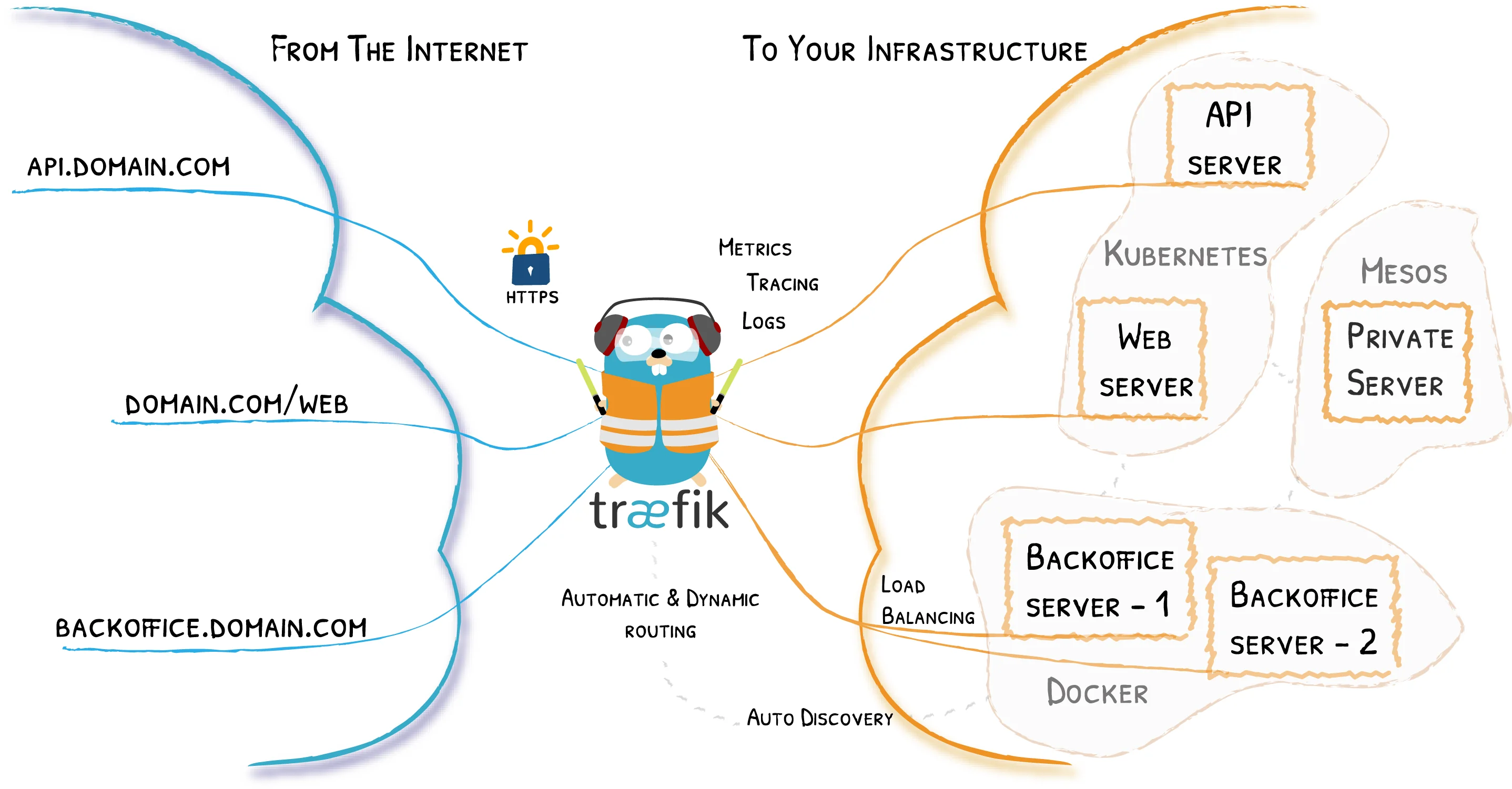
We are using Traefik as a reverse proxy in our Home Lab. Traefik is deployed on our Docker Cluster and Raspberry Pi Docker server.
Traefik is set to use Let’s Encrypt to obtain and update SSL certificates for our domain. We use a DNS-01 challenge and Cloudflare for this purpose
The steps required to deploy Traefik are covered in this video:
Deploy Traefik with Lets Encrypt SSL Certificates
We also used the information in this video to separate and secure external and internal access to our Docker containers via Taefik:
Secure Traffic External Access
Adding Workloads
Traefik can serve as a reverse proxy for services in our Docker environment, external workloads on VMs, and stand-alone Docker hosts such as our Raspberry Pi Docker host.
The last two chapters of the following video explain how to set up additional services behind a Traefik reverse proxy.
Configuring Traefik 3