There are many reasons why you may need to expand Proxmox VM Storage. It is always challenging to grow a VM’s virtual disk in Proxmox. The process requires several steps. Mistakes can result in the loss of data. The video above provides an easy-to-understand guide on how to expand a VM disk.
Before beginning, your should make a backup. It also helps to format your VM disks using LVM thin provisioning.
It is common to need to create Ubuntu Server VMs to host various applications. To facilitate the creation of such VMs, we’ve created a Proxmox template using the procedure in this video: Create VM Template Including Cloud-Init
The template can be used to create the VMs to support Docker Swarm, Kubernetes, and other applications running on Ubuntu Server. The QEMU Guest Agent should also installed on each VM after they have been cloned via the template.
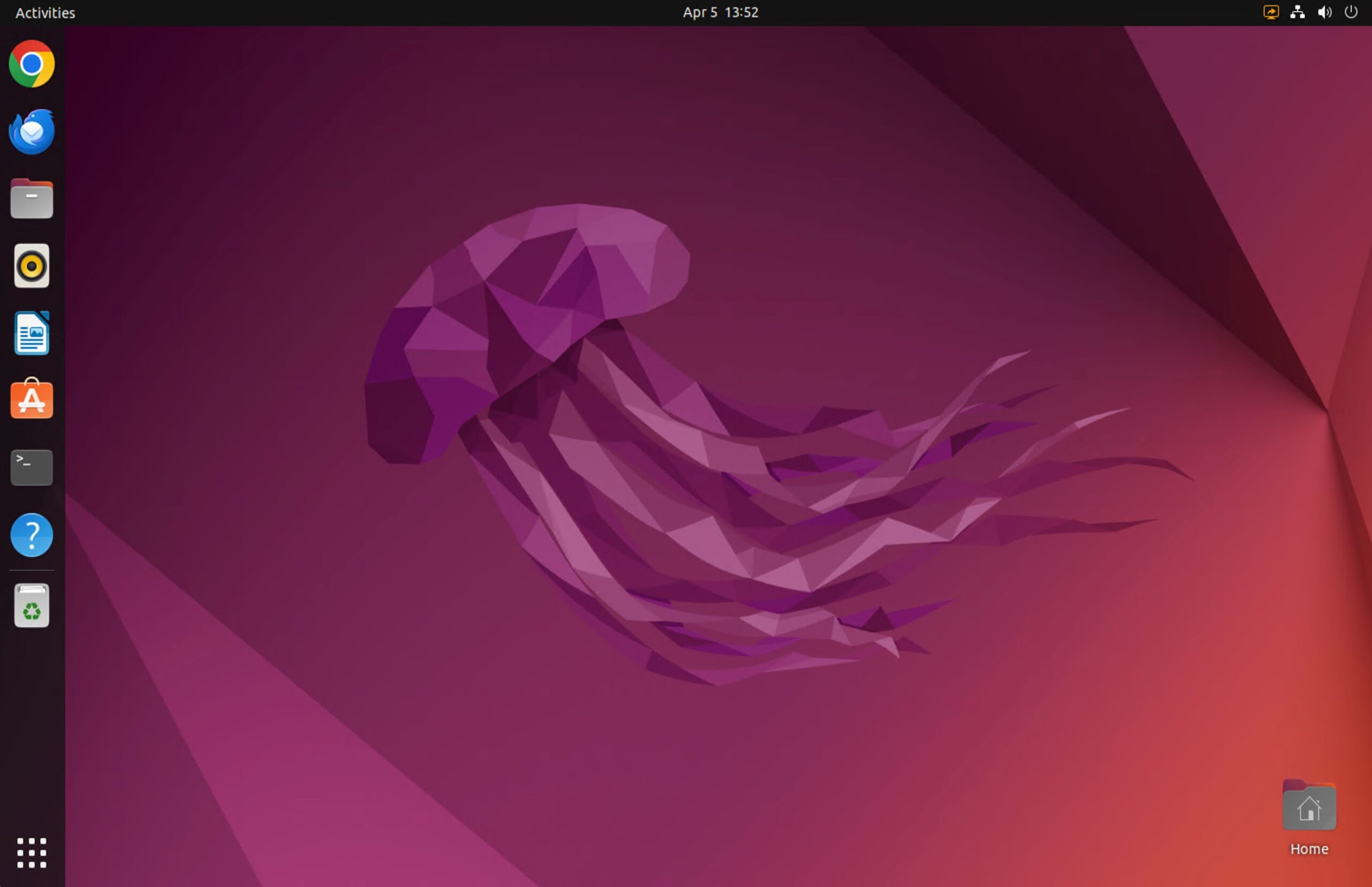
Several Ubuntu Linux desktop Virtual Machines (VMs) support general-purpose desktop applications and our DXalarm Clocks. The following steps create the base VMs for these applications.
The CPU and Memory parameters are chosen to be on the high side for most applications. This enables a quick installation and setup of the resulting VM. These parameters can be adjusted lower to match the actual workload for each provisioned VM.
Run the Ubuntu installer on the initial boot as follows:
US English
Normal Installation, Download Updates while installing
Erase Disk and Install Ubuntu
Timezone = New York, Automatic Timezone, AM/PM Time Format
Set computer name and login credentials
I also installed SSH access for all logins. The procedure for doing this can be found here.
Next was a few post-setup configuration steps:
Dark Style
Set Desktop Wallpaper
Setup Remote Desktop and VNC Sharing
Finally, we installed the following via the Ubuntu Software apps:
Extension Manager
Allow Locked Remote Desktop via Extension Manager (by name search)
E-mail Forwarding
Outbound e-mail is set up via nullmailer using the procedure outlined here.
# Run this as root
sudo bash

# Install nullmailer and mail apps
apt-get install nullmailer mailutils

# Move to the nullmailer directory
cd /etc/nullmailer

# Create configuration files
vi defaultdomain
...
anita-fred.net
:wq

vi adminaddr
...
<my-email-address>
:wq

# This file sets up TLS access to smtp2go
sudo vi /etc/remotes
...
mail.smtp2go.com smtp --port=587 --starttls --user=<my smtp2go login ID> --pass=<my stmp2go password>
:wq

# The next three steps are important!
chmod 644 defaultdomain adminaddr
chmod 600 remotes
chown mail:mail defaultdomain adminaddr remotes

# Check status of nullmailer
service nullmailer status

# Send a test e-mail
mailx -s "Test e-mail via nullmailer MTA" <email address>
...
Sound Through Remote Desktop Client
The xRDP extensions enable sound from our Ubuntu VMs via Remote Desktop. The procedure to install the necessary extensions in Ubuntu VMs can be found here.
The steps are as follows:
# Must run these commands as normal user, not root
su - fkemmerer

# Download script, unzip it, & make it exeutable
wget https://www.c-nergy.be/downloads/xRDP/xrdp-installer-1.4.3.zip
unzip xrdp-installer-1.4.3.zip
chmod +x xrdp-installer-1.4.3.sh

# Must use -s to install sound drivers
./xrdp-installer-1.4.3.sh -s

# Shutdown machine, then reboot
sudo shutdown
Applications
Installed the following applications
Chrome & associated apps
VLC Player
Install the Python IDE interface as follows:
sudo apt install idle
Template Conversion and Use
The fully set up VM has been converted to a template. The template can you used to create Ubuntu Desktop VMs using the following steps:
Clone (unlinked clone is preferred) the template to a VM
Edit /etc/hosts and /etc/hostname to set the system name for the new VM
Add the new VM to the Backup and HA configurations
One of our Homelab environment’s goals is to run our Windows desktop OSs on virtual machines. This enables us to get at standard OS environments such as Microsoft Windows easily from a web browser.
Windows Virtual Machine Setup
We use the following procedure to set up our Windows VMs –
The following ISO images are downloaded to the PVE-templates Share on our Proxmox cluster –
Run on HS Services Network, use Intel E1000 NIC, set VLAN Tag to 10
Start the VM and install Windows. Some notes include –
Enter the Windows 10 Pro product key
Use the Windows Driver disk to load a driver for the disk
Once Windows is up, use Windows Driver disk to install drivers for devices that did not install automatically. You can find the correct driver by searching for drivers from the root of the Windows Driver disk.
Install the qemu guest agent from the Windows Driver disk. It’s in the guest agent directory.
Set the Computer name, Workgroup, and Domain name for the VM.
Do a Windows update and install all updates next.
Setup Windows applications as follows –
Install Chrome browser
Install Dashlane password manager
Install Dropbox and Synology Drive
Install Start10
Install Directory Opus File Manager
Install PDF Viewer
Install Printers
Install media tools, VLC Player, and QuickTime Player
Install Network utilities, WebSSH
Install windows gadgets
Install DXlab, tqsl, etc.
Install Microsoft Office and Outlook
Install SmartSDR
Install WSJT-X, JTDX, JTalert
Install PSTRotator, Amplifer app
Install RealVNC
Install Benchmarks (Disk, Graphics, Geekbench)
Install Folding at Home
Need a sound driver for audio (Windows Remote Desktop or RealVNC).