Category Archives: Storage

For information related to storage and NAS devices.

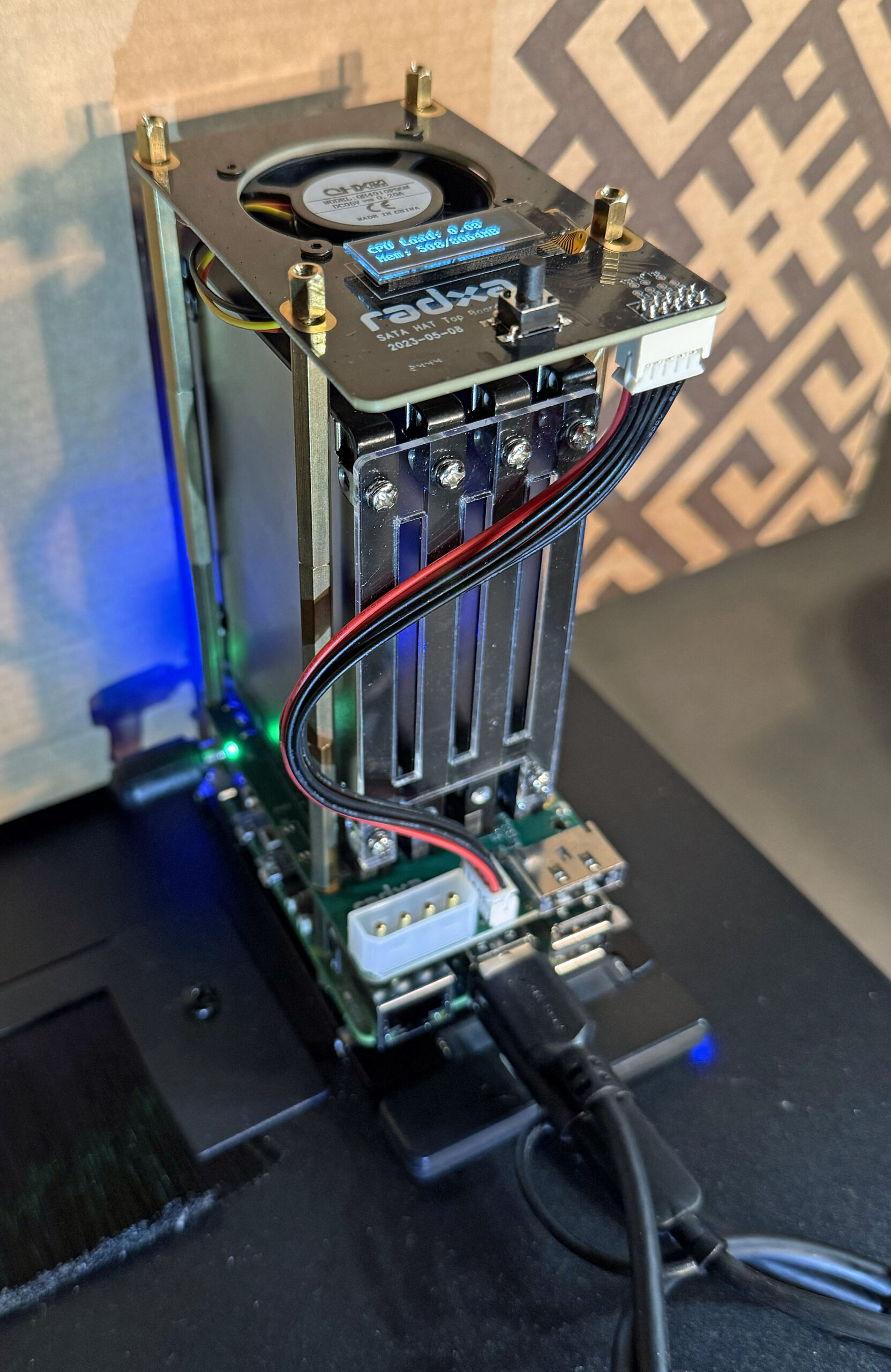
Raspberry Pi NAS 2

Raspberry Pi NAS 2
Raspberry Pi NAS 2

We’ve built a second NAS and Docker environment using another Raspberry Pi 5. This NAS features four 2.5 in 960 GB SSD drives in a RAID-0 array for fast shared storage on our network.

Raspberry Pi NAS Hardware Components
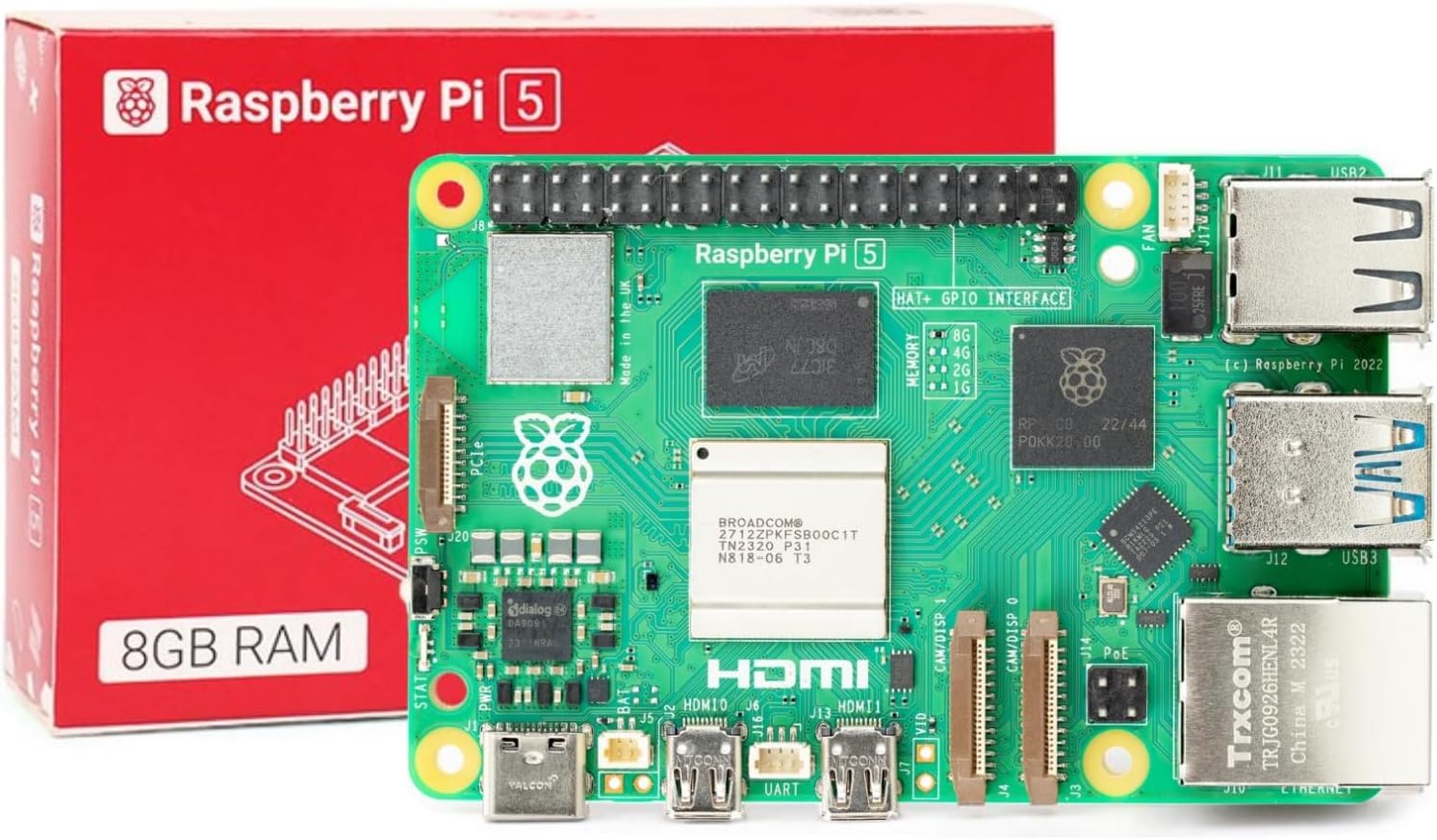
Raspberry Pi 5 Single Board Computer

We use the following components to build our system –

I had five 960 GB 2.5″ SSD drives from a previous project available for this project.

The following video covers the hardware assembly –

We used a 2.5 GbE USB adapter to create a 2.5 GbE network interface on our NAS.
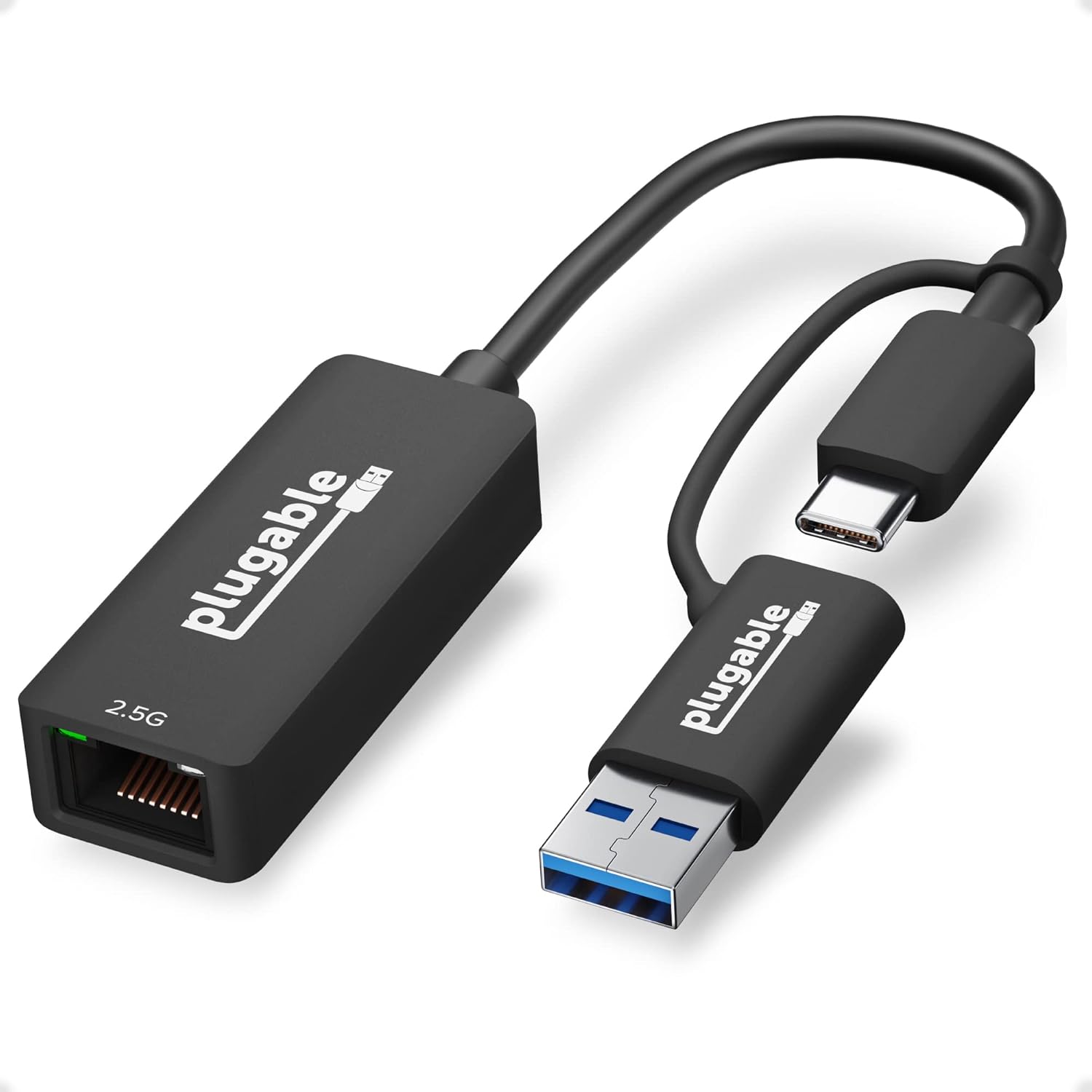
2.5 GbE USB Adapter
2.5 GbE USB Adapter

The configuration of the Fan/Display HAT top board is covered here.
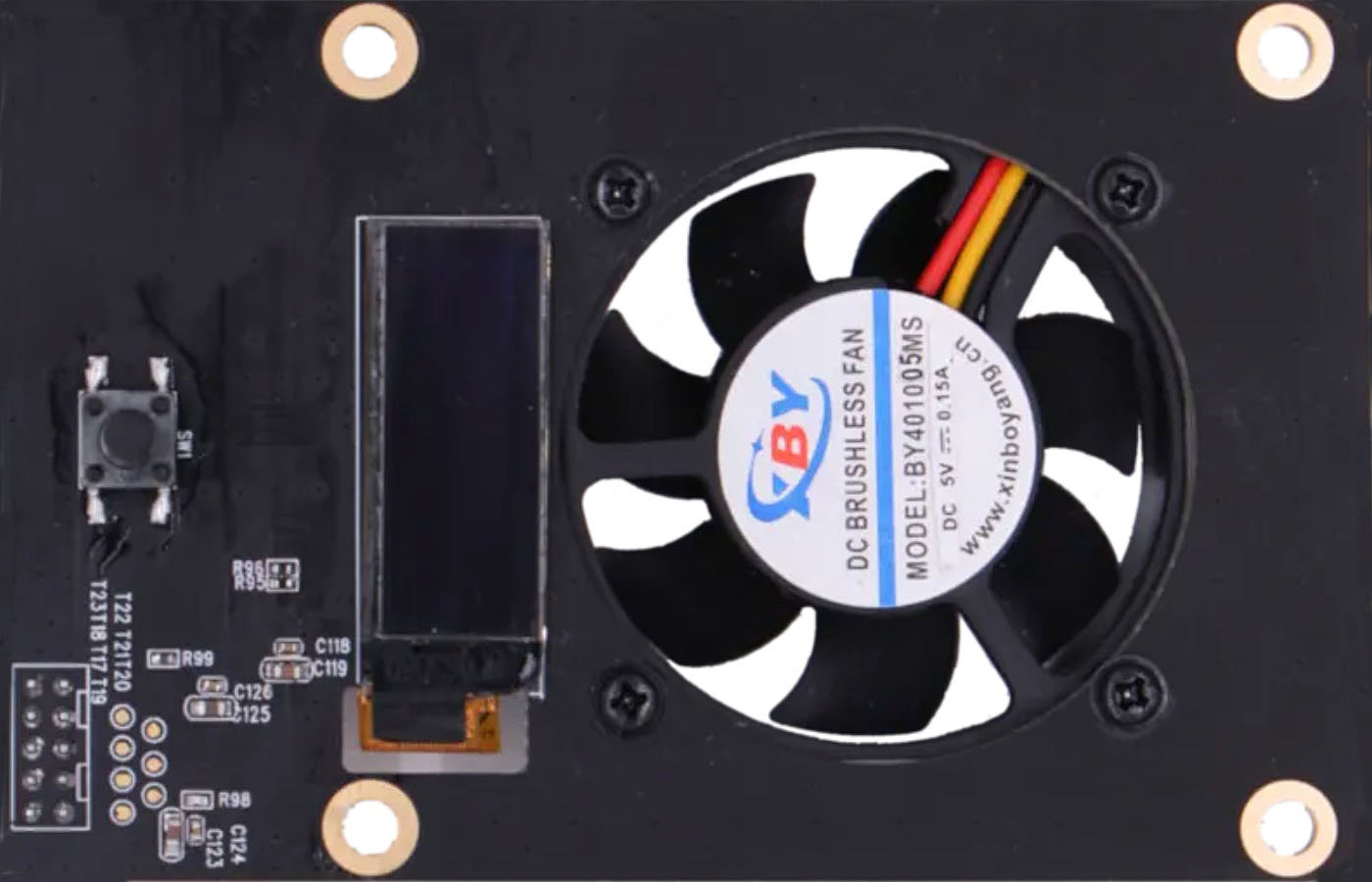
FAN/Display Top Board

This board comes as a kit that includes spaces to mount it on top of the Raspberry Pi 5/SSD Drive Interface HAT in the base kit.

Software Components and Installation

We installed the following software on our system to create our NAS –

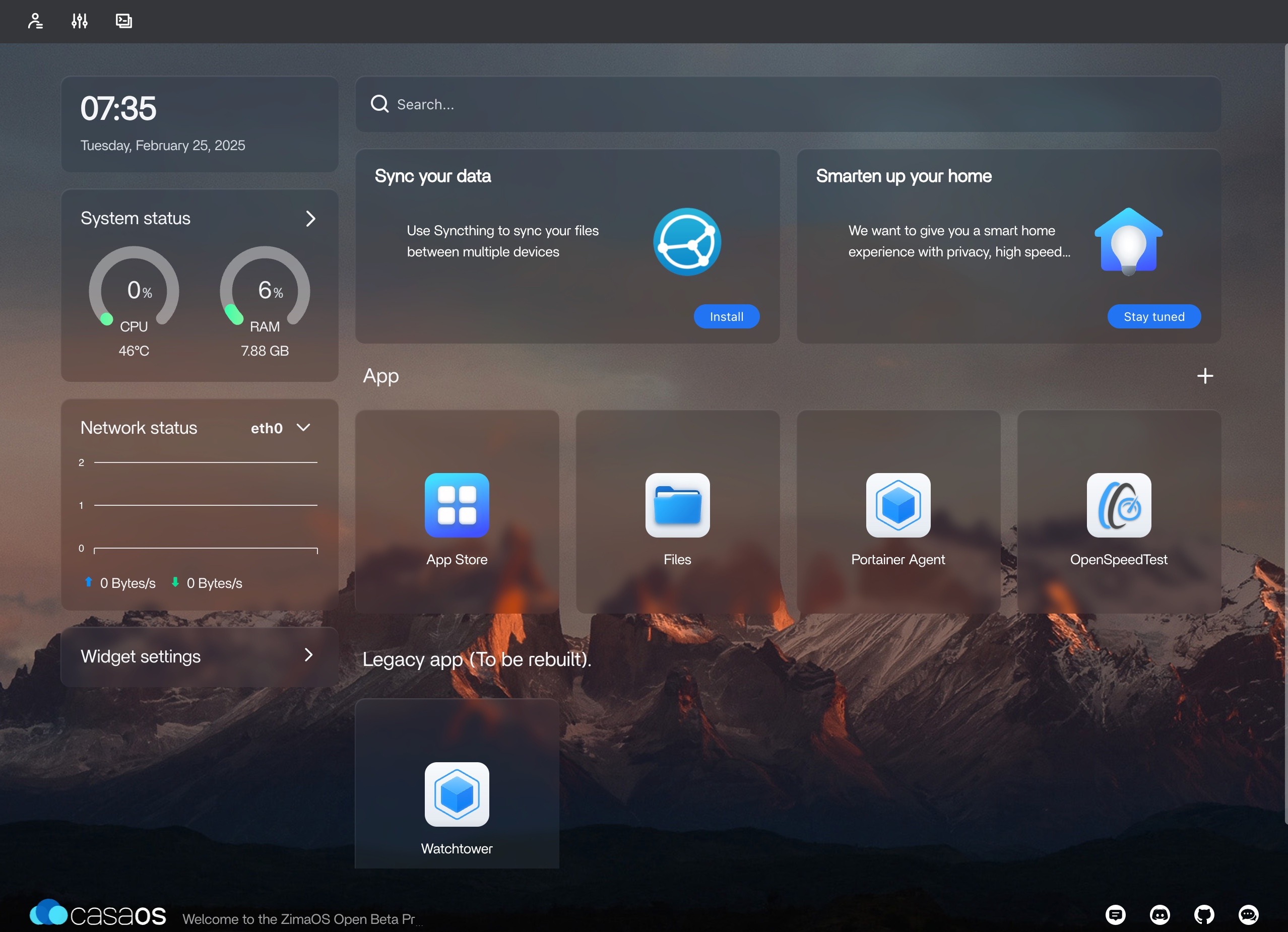
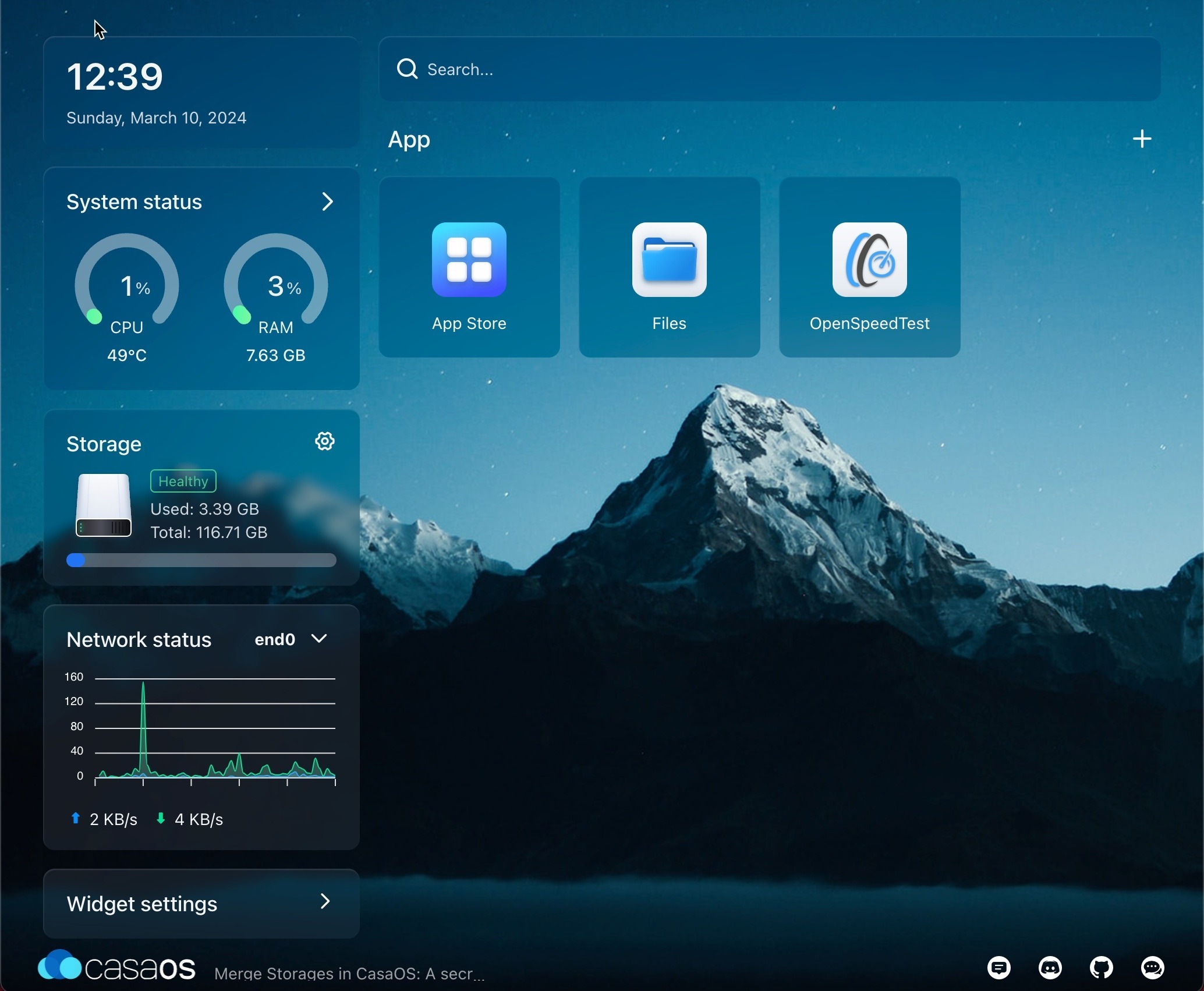
CassaOS

CasaOS Web UI
CasaOS Web UI

CasaOS is included to add a very nice GUI for managing each of our NUT servers. Here’s a useful video on how to install CasaOS on the Raspberry Pi –

Installation

The first step is to install the 64-bit Lite Version of Raspberry Pi OS. This is done by first installing a full desktop version on a flash card and then using Raspberry Pi Imager to install the lite version on our SSD boot drive. We did this on our macOS computer using the USB to SATA adapter and belenaEtcher.

We used the process covered in the video above to install CasaOS.

Creating a RAID

We choose to create a RAID-0 array using the four SSD drives in our NAS. Experience with SSD drives in a light-duty application like ours indicates that this approach will be reasonably reliable with SSD drives. We also backup the contents of the NAS daily to another system via Rsync to one of our Synology NAS drives.
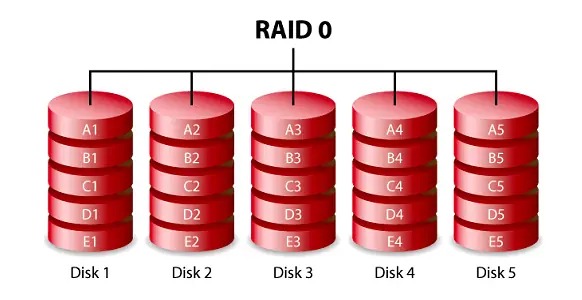
RAID-0 Storage Array

CasaOS does not provide support for RAID so this is done using the underlying Linux OS. The process is explained here.

File Share

CasaOS makes all of its shares public and does not password-protect shared folders. While this may be acceptable for home use where the network is isolated from the public Internet, it certainly is not a good security practice.

Fortunately, the Debian Linux-derived distro we are running includes Samba file share support, which we can use to protect our shares properly. This article explains the basics of how to do this.

Here’s an example of the information in smb.conf for one of our shares –

[Public]
    path = /DATA/Public
    browsable = yes
    writeable = Yes
    create mask = 0644
    directory mask = 0755
    public = no
    comment = "General purpose public share"

You will also need to create a Samba user for your Samba shares to work. Samba user privileges can be added to any of the existing Raspberry Pi OS users with the following command –

# sudo smbpasswd -a <User ID to add>

It’s also important to correctly set the shared folder’s owner, group, and modes.

We need to restart the Samba service anytime configuration changes are made. This can be done with the following command –

# sudo systemctl restart smbd
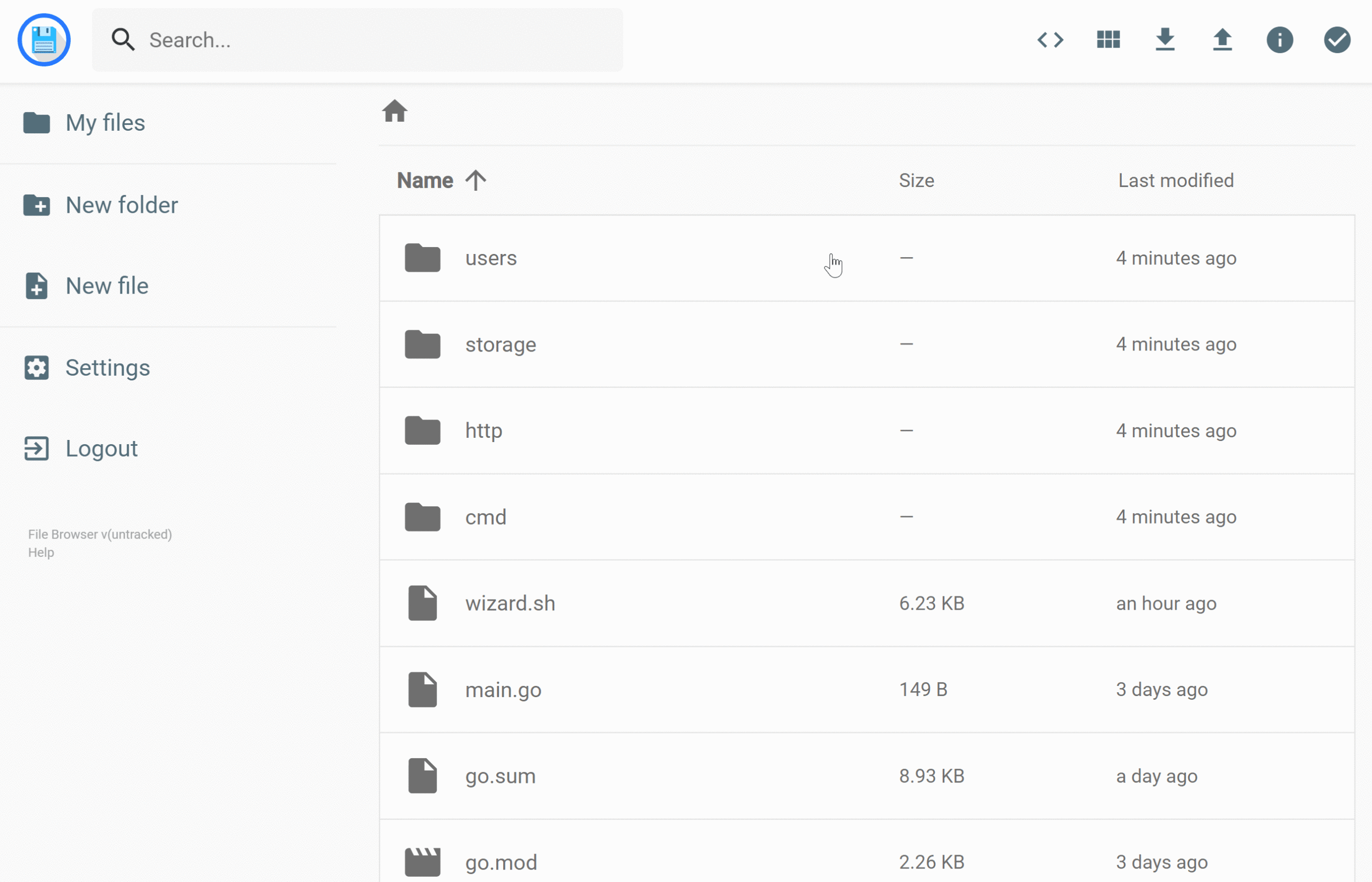
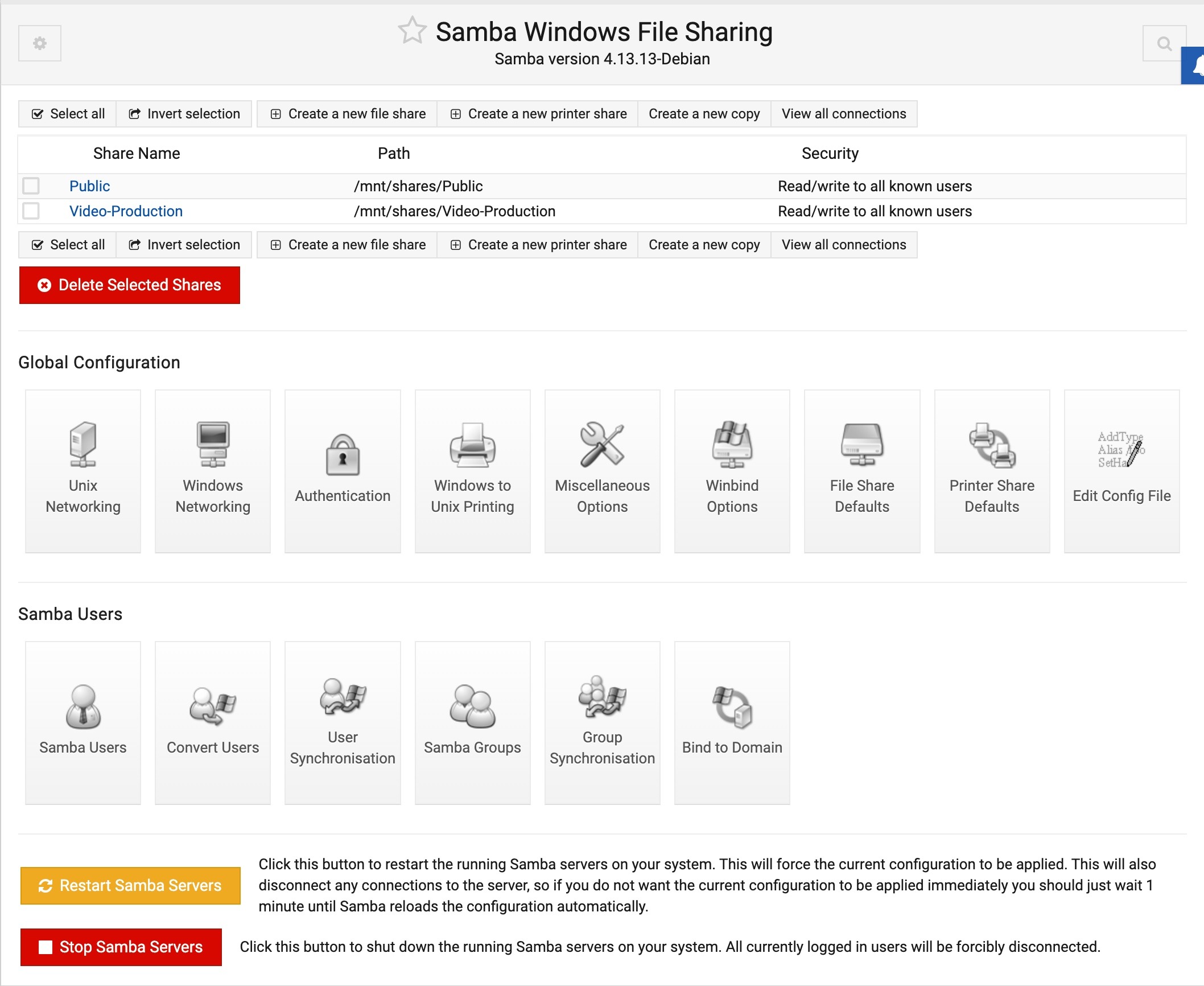
Samba File Server

Samba File Server
Samba File Server

We have quite a bit of high-speed SSD storage available on the pve1 server in our Proxmox cluster. We made this storage available as a NAS drive using the Turnkey Samba File Server.

Installing the Turkey Samba File Server

We installed the Turnkey File Server in an LXC container that runs on our pve1 storage. This LSC will not be movable as it will be associated with SSD disks that are only available on pve1. The first step is to create a ZFS file system (zfsb) on pve1 to hold the LXC boot drive and storage.

The video below explains the procedure used to set up the File Server LXC and configure Samba shares.

The LXC container for our File Server was created with the following parameters –

  • 2 CPUs
  • 1 GB Memory
  • 8 GB Boot Disk in zfsb_mp
  • 8 TB Share Disk in zfsb_mp (mounted as /mnt/shares with PBS backups enabled.)
  • High-speed Services Network, VLAN Tab=10
  • The container is unprivileged

File Server LXC Configuration

The following steps were performed to configure our File Server –

  • Set the system name to nas-10
  • Configured postfix to forward email
  • Set the timezone
  • Install standard tools
  • Updated the system via apt update && apt upgrade
  • Installed SSL certificates using a variation of the procedures here and here.
  • Setup Samba users, groups, and shares per the video above

Backups

Our strategy for backing up our file server is to run a Rsync job via the Cron inside the host LXC container. The Rsync copies the contents of our file shares to one of our NAS drives. The NAS drive then implements a 1-2-3 Backup Strategy for our data.

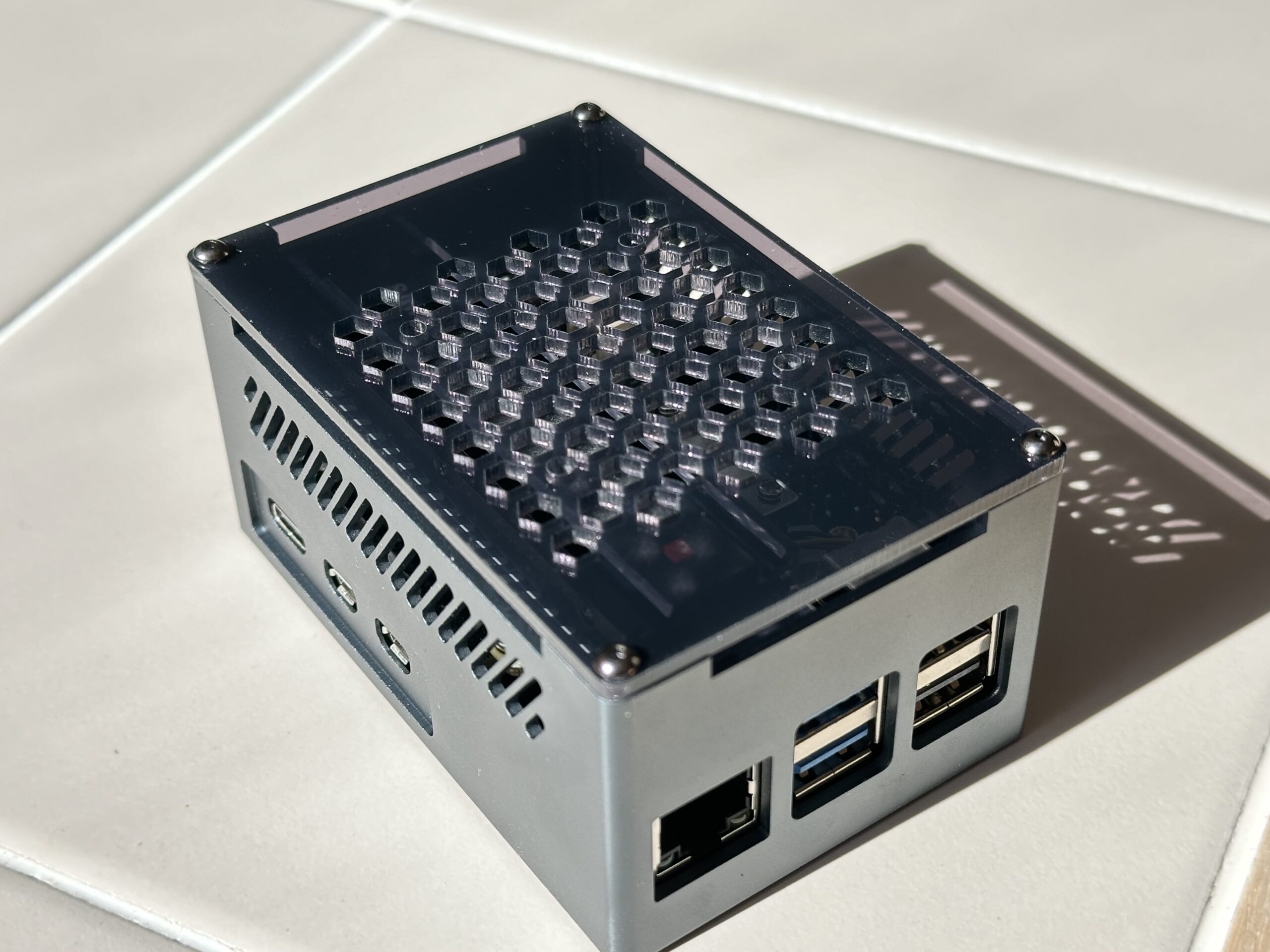
Raspberry Pi NAS

Raspberry Pi NAS
Raspberry Pi NAS

We’ve built a NAS and Docker environment using a Raspberry Pi 5. Our NAS features a 2 TB NVMe SSD drive for fast shared storage on our network.

Raspberry Pi NAS Hardware Components

Raspberry Pi 5 Single Board Computer

We use the following components to build our system –

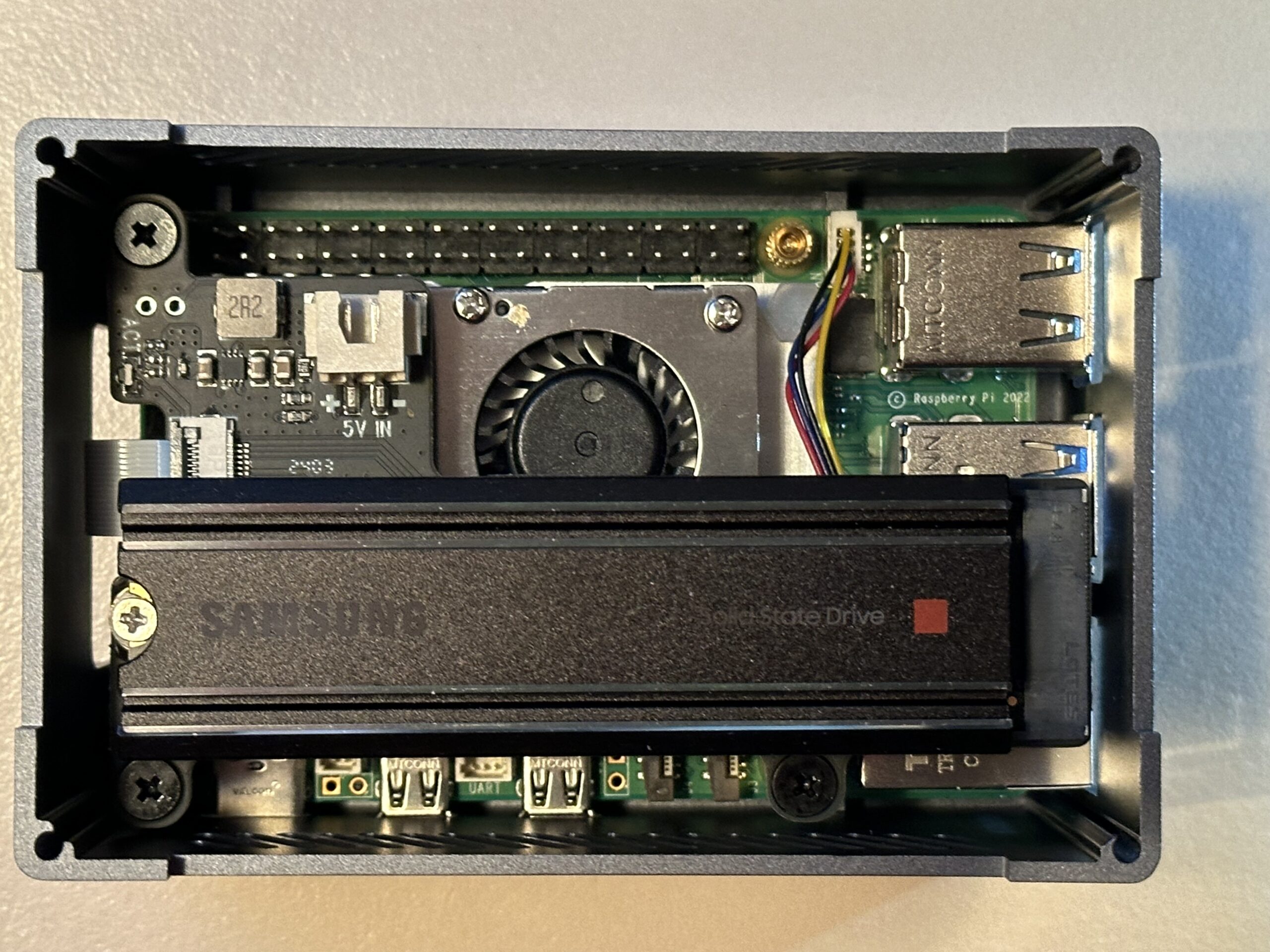
Here’s a photo of the completed hardware assembly –

Pi NAS Internals - Raspberry Pi NAS
Pi NAS Internals

Software Components and Installation

We installed the following software on our system to create our NAS –

CassaOS

CasaOS GUI
CasaOS GUI

CasaOS is included to add a very nice GUI for managing each of our NUT servers. Here’s a useful video on how to install CasaOS on the Raspberry Pi –

Installation

The first step is to install the 64-bit Lite Version of Raspberry Pi OS. This is done by first installing a full desktop version on a flash card and then using Raspberry Pi Imager to install the lite version on our NVMe drive.

Once this installation was done, we used the Raspberry Pi Imager to install the same OS version on our NVMe SSD. After removing the flash card and booting to the NVMe SSD, the following configuration changes were made –

  • The system name is set to NAS-11
  • Enabled SSH
  • Set our user ID and password
  • Applied all available updates
  • We updated /boot/firmware/config.txt to enable PCIe Gen3 operation with our SSD

We used the process covered in the video above to install CasaOS.

CasaOS makes all of its shares public and does not password-protect shared folders. While this may be acceptable for home use where the network is isolated from the public Internet, it certainly is not a good security practice.

Fortunately, the Debian Linux-derived distro we are running includes Samba file share support, which we can use to protect our shares properly. This article explains the basics of how to do this.

Here’s an example of the information in smb.conf for one of our shares –

[Public]
    path = /DATA/Public
    browsable = yes
    writeable = Yes
    create mask = 0644
    directory mask = 0755
    public = no
    comment = "General purpose public share"

You will also need to create a Samba user for your Samba shares to work. Samba user privileges can be added to any of the existing Raspberry Pi OS users with the following command –

# sudo smbpasswd -a <User ID to add>

It’s also important to correctly set the shared folder’s owner, group, and modes.

We need to restart the Samba service anytime configuration changes are made. This can be done with the following command –

# sudo systemctl restart smbd