We use Cloudflare to host our domains and the associated external DNS records. Cloudflare provides excellent security and scaling features and is free for our use cases.
We do not have a static IP address from either of our ISPs. This, coupled with the potential of a failover from our primary to our secondary ISP, requires us to use DDNS to keep the IPs for our domains up to date in Cloudflare’s DNS.
We run a docker container for each domain that periodically checks to see if our external IP address has changed and updates our DNS records in Cloudflare. The repository for this container can be found here.
Deploying the DDNS update container is done via a simple docker compose yml –
Traefik is set to use Let’s Encrypt to obtain and update SSL certificates for our domain. We use a DNS-01 challenge and Cloudflare for this purpose
The steps required to deploy Traefik are covered in this video:
Deploy Traefik with Lets Encrypt SSL Certificates
We also used the information in this video to separate and secure external and internal access to our Docker containers via Taefik:
Secure Traffic External Access
Adding Workloads
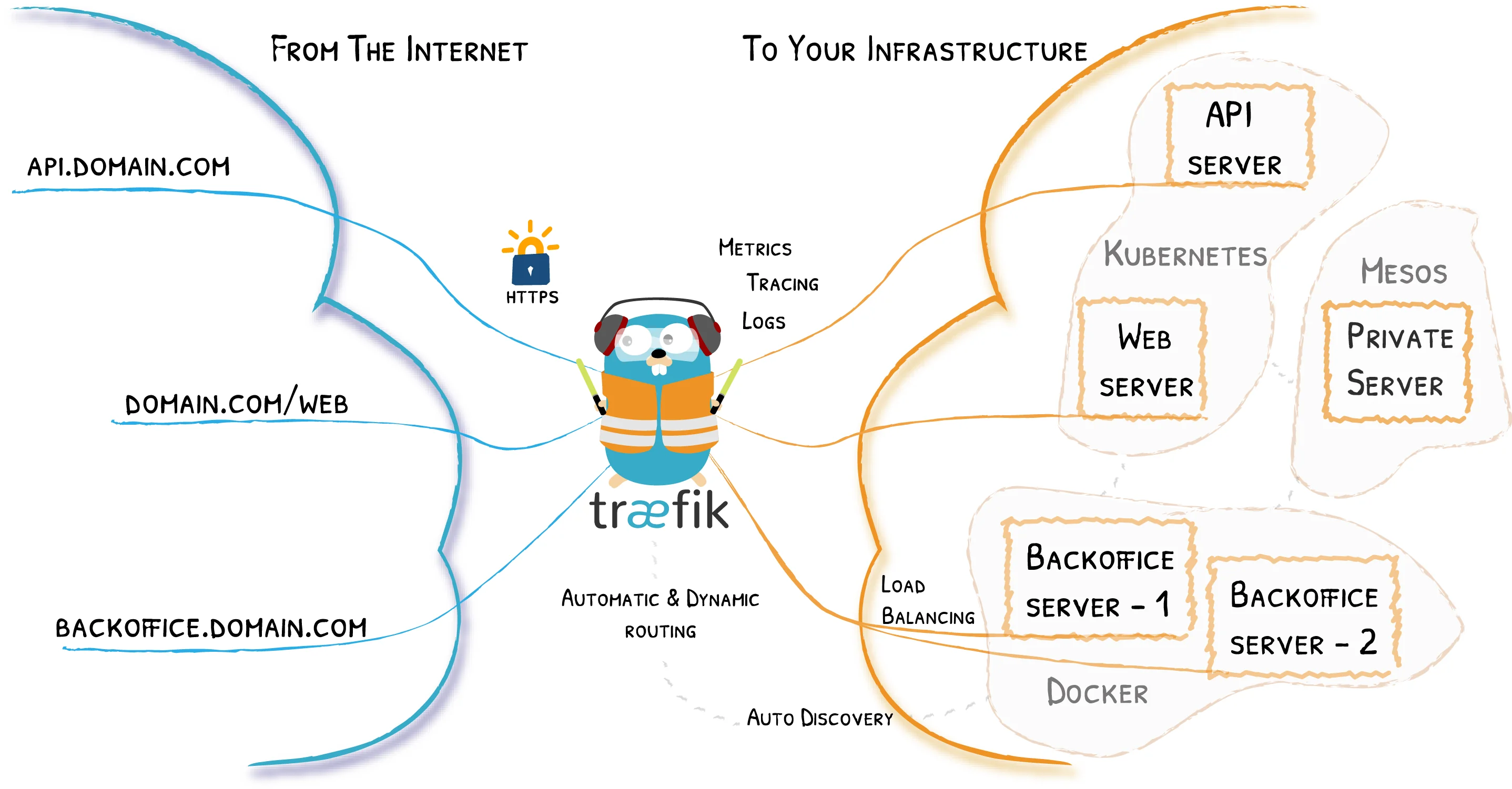
Traefik can serve as a reverse proxy for services in our Docker environment, external workloads on VMs, and stand-alone Docker hosts such as our Raspberry Pi Docker host.
The last two chapters of the following video explain how to set up additional services behind a Traefik reverse proxy.
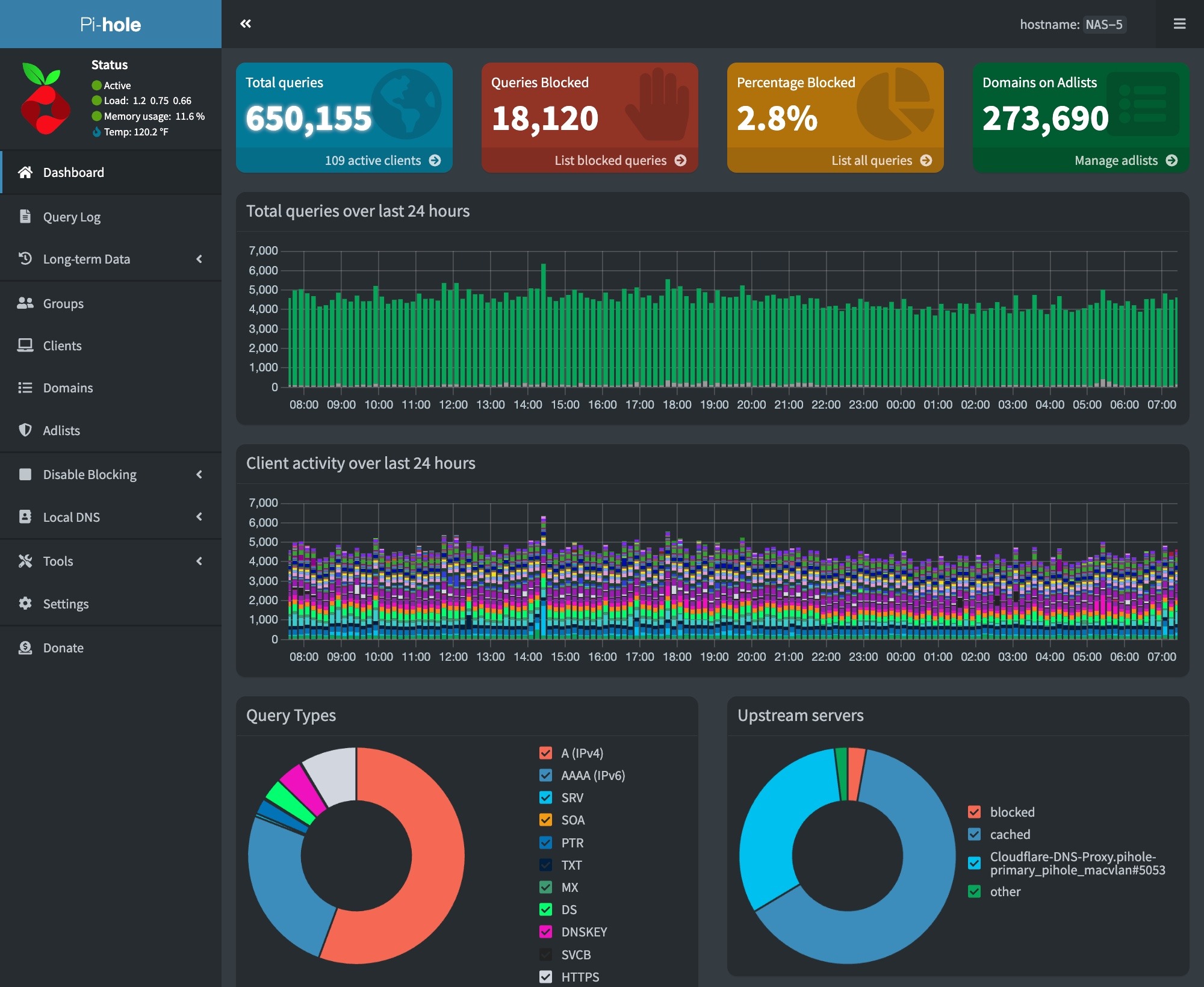
We have set up a Raspberry Pi 5 system to run a third PiHole DNS server in our network. This ensures that DNS services are available even if our other servers are down.
To make this PiHole easy to manage, we configured our Raspberry Pi to run Docker. This enables us to manage the PiHole installation on the Pi from the Portainer instance used to manage our systems running docker.
We are also running the Traefik reverse proxy. Traefik is used to provide an SSL certificate for our PiHole.
Raspberry Pi Hardware
Raspberry Pi Docker Host
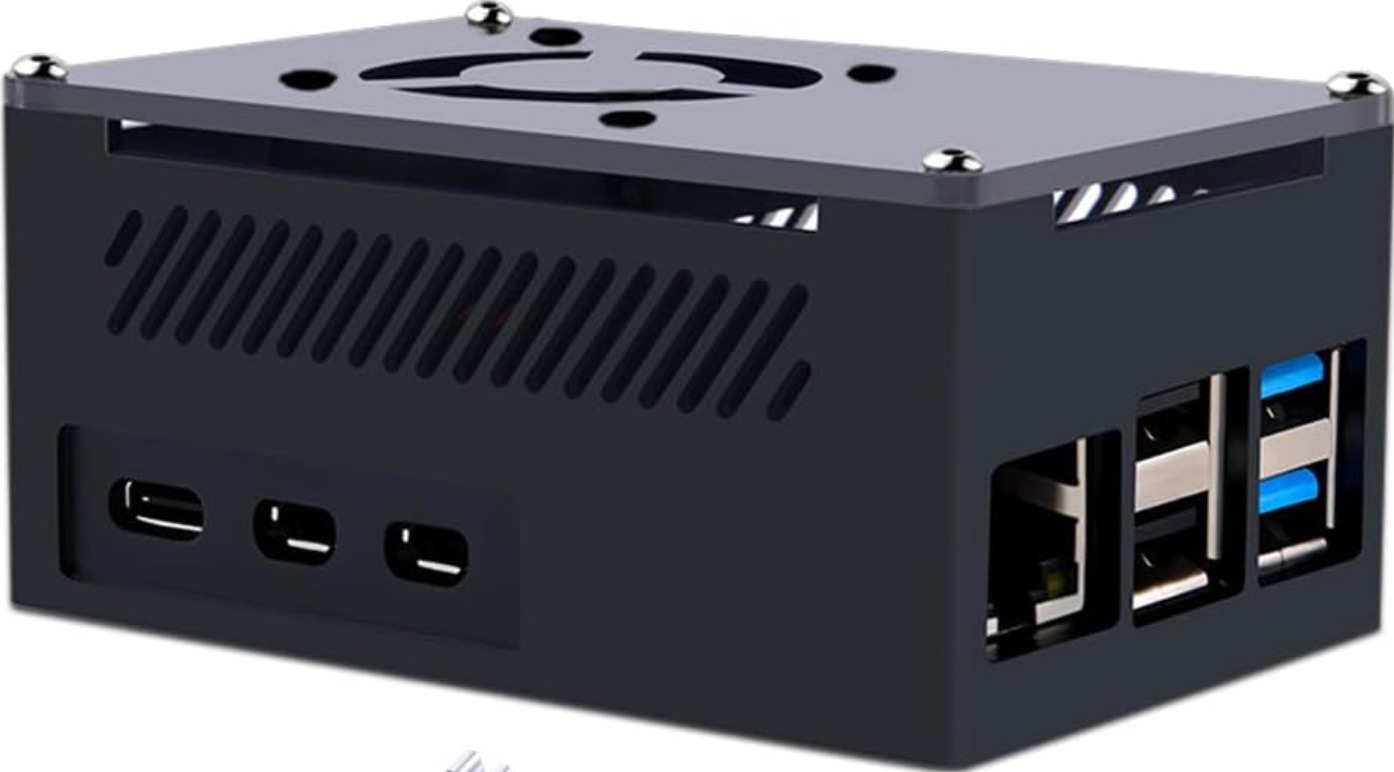
Our docker host consists of a PoE-powered Raspberry Pi 5 system. The hardware components used include:
Raspberry Pi 5 8GB Single Board 2.4GHz Quad-core SBC
We are running the 64-bit Lite version (no GUI desktop) of Raspberry Pi OS. The configuration steps on the initial boot include:
Setting the keyboard layout to English (US)
Setting a unique user name
Setting a strong password
After the system is booted, we used sudo raspi-configto set the following additional options:
Updated raspi-config to the latest version
Set the system’s hostname
Enable ssh
Set the Timezone
Configure predictable network names
Expand the filesystem to use all of the space on our flash card
Next, we did a sudo apt update && sudo apt dist-upgrade to update our system and rebooted.
The RPi 5 works well with the PoE HAT we are using. The RPi5 booted up with the USB interfaces in low-power mode. The PoE HAT provides enough power to enable USB boot, so we added the following to bring our RPi up in full power USB mode:
$ sudo vi /boot/firmware/config.txt

[all]
# Enable RPi 5 to provide full power to USB
usb_max_current_enable=1
:wq

# After rebooting, check USB power mode
$ vcgencmd get_config usb_max_current_enable
usb_max_current_enable=1
Finally, we created and ran a script to install our SSH keys on the system, and we verified that SSH access was working. With this done, we ran our ansible configuration script to install the standard set of tools and utilities that we use on our Linux systems.
Mail Forwarding
We will need to forward emails from containers and scripts on the system. To do this, we set up email forwarding using the procedure here.
Docker/Docker Compose Installation
Installing Docker and the Docker Compose plugin involves a series of command line steps on the RPi. To automate this process, we created a script that runs on our Ubunutu Admin server. The steps required for these installations are covered in the following video:
Steps to install Docker and Docker Compose on a Raspberry Pi
Some important adjustments to the steps in the video included:
Installed the Docker Compose plugin instead of Docker Compose. The procedure to install the plugin can be found here.
The installation can be verified at the end with the following commands:
# docker --version
# docker compose version
# docker run hello-world
Portainer Agent
We installed the Portainer Edge agent using the following command, which is run on the RPi:
These applications are installed via custom scripts, and Docker Compose using a single stack. Our combined stack was created using a combination of the information in the following videos:
We must update our piHole block list by doing a Gravity pull. We do this daily via a cron job. This can be configured on the RPi host using the following commands –
# Edit the user crontab
sudo crontab -u <user-id> -e

# The following to the user crontab
min hr * * * su ubuntu -c /usr/bin/docker exec pihole pihole -g | /usr/bin/mailx -s"RPi Docker - Gravity Pull" your-email@mydomain.com
Cloudflare DDNS
We host our domains externally on Cloudflare. We use Docker containers to keep our external IP address up to date in Cloudflare’s DNS system. You can learn about how to set this up here.
Watchtower
We are running the Watchtower container to keep our containers on our RPi Docker host up to date. You can learn more about Watchtower and how to install it here.
Backups
We back up our Raspberry Pi Docker host using Synology ActiveBackup for business running on one of our Synology NAS drives.